
We offer two ways to help you understand the solution to this query. Pick whichever works best for you:
Prefer to watch? Start with our short walkthrough video that shows you exactly how it works, step by step.
Prefer to read? Scroll down for the full written guide with screenshots and detailed explanations.
Every patent application at the USPTO carries a long paper trail behind it. Google Patents and the USPTO’s Patent Public Search show you only a small part of it.
The Fee receipts, continuity links, and patent term adjustment calculations sit elsewhere. Reaching them means moving between several websites or holding a registered USPTO account.
That’s why we’ve introduced Patent Lookup.
It pulls the whole record onto one page. You can enter a US or an international patent number and get back everything associated with that patent record.
This matters when you need to:
- See which art unit and examiner an application landed with, then check the allowance rate before planning your next move.
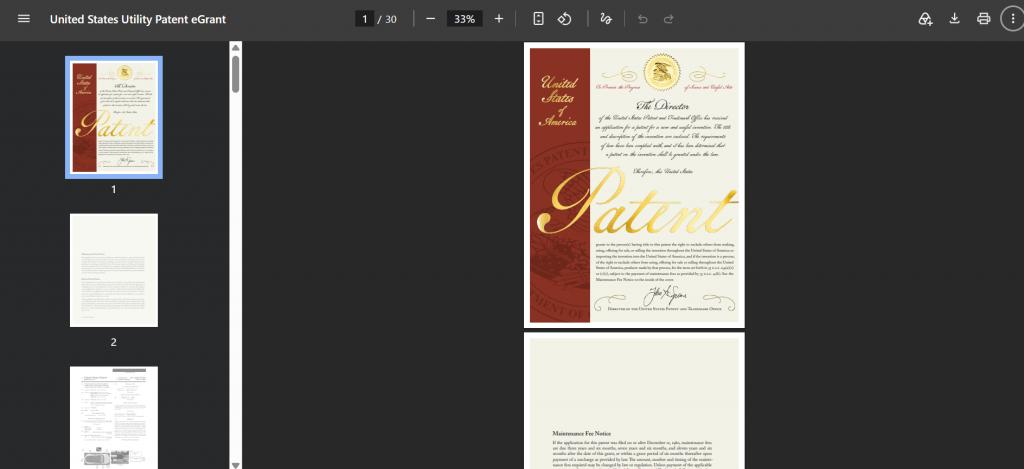
- Download the official signed grant document.
- Share a full prosecution snapshot with the stakeholders.
How to Use Patent Lookup in the TIP Tool™
Patent Lookup is available directly in the top navigation menu of the TIP Tool™. Click on Patent Lookup to open it.

Step 1: Search for Your Patent
The search box accepts any of these numbers:
- Patent number – US 12,462,575
- Application number – 17/820,859
- Publication number – US20230057509A1
You can search US and international patent applications. Once you’ve entered the number, click on the Search icon.
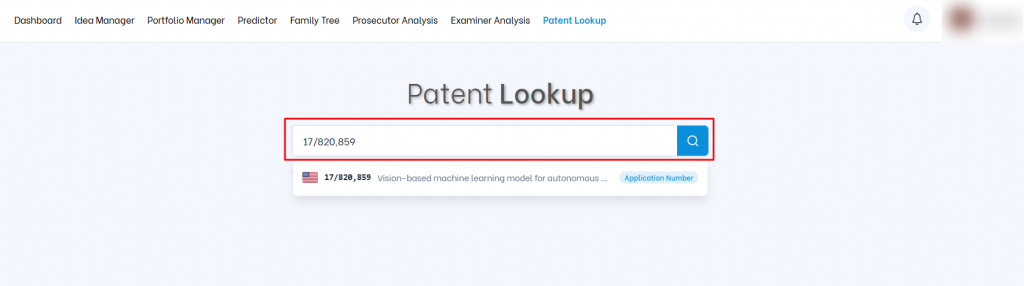
The tool pulls the live record from the USPTO and opens the result page.
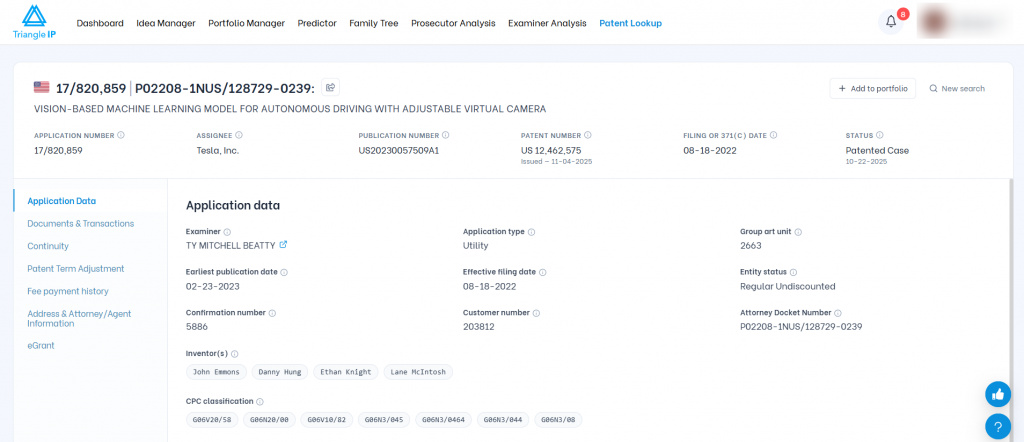
| Note: You can have up to 10 searches per day. |
Step 2: Check the Key Details
Every result opens with a summary that stays visible as you move between tabs. It gives you the headline facts at a glance:
- Application Number
- Assignee
- Publication Number
- Patent Number, with the issue date underneath
- Filing Date
- Status, with the date that status was recorded
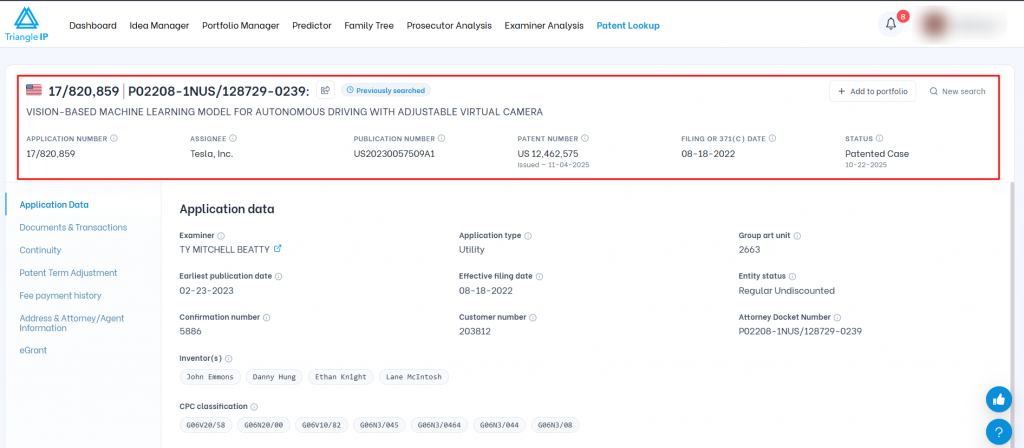
Here’s All That Patent Lookup Shows You
Seven tabs run down the left side of the result. Each one covers a different part of the patent record.
1. Application Data
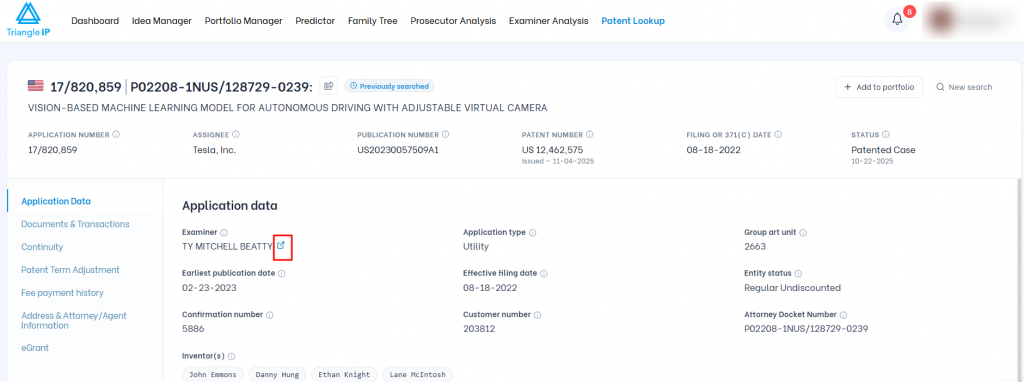
In the Application Data tab, you can view:
- Examiner
- Application type
- Group art unit
- Earliest publication date
- Effective filing date
- Entity status
- Confirmation number
- Customer number
- Attorney Docket Number
- Inventor names
- CPC classification codes
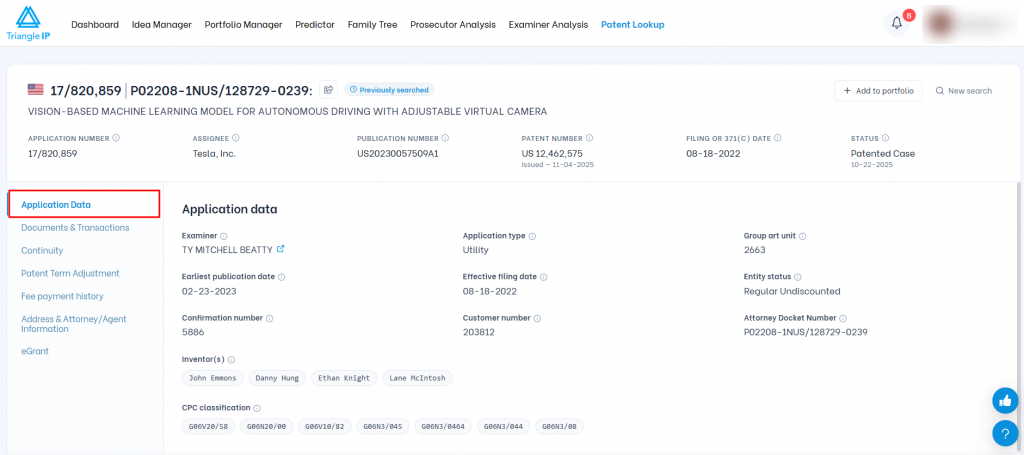
Use this to see which examiner, CPC Code, and art unit an application was assigned to. CPC codes show how the USPTO has classified the invention.
You can view the Examiner Statistics, like the average allowance rate, grant time, and more, by clicking on the external link icon near the Examiner’s name.
2. Documents & Transactions
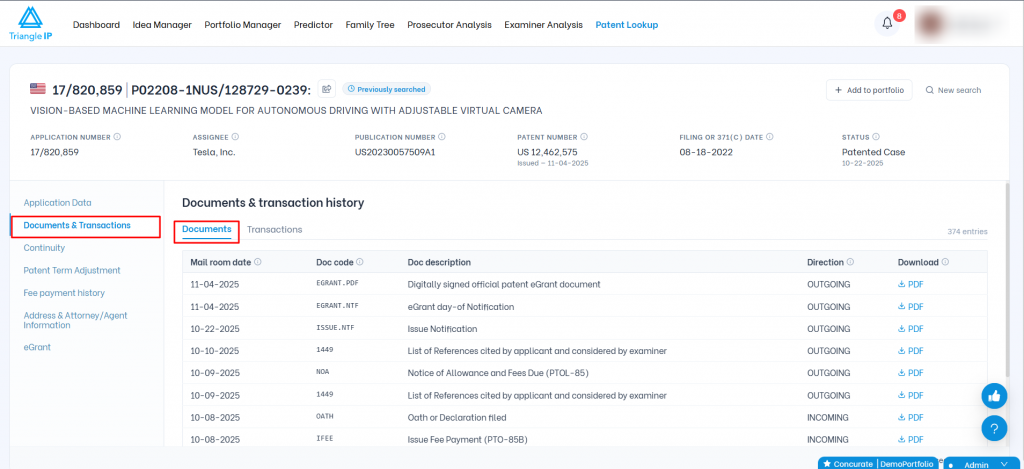
Here you can download the documents and view the transactions involved in the prosecution of the patent application.
It lists every document associated with the patent application:
- Mail room date – The date the document was received or mailed.
- Doc code – The USPTO Document code
- Doc description
- Direction
- Incoming means the applicant filed it with the USPTO.
- Outgoing means the USPTO sent it to the applicant.
- Internal means the USPTO created it during examination.
- A PDF download option for each document.
The Transactions tab lists every event the USPTO logged during prosecution:
- Date
- Code – USPTO event code for that transaction
- Description
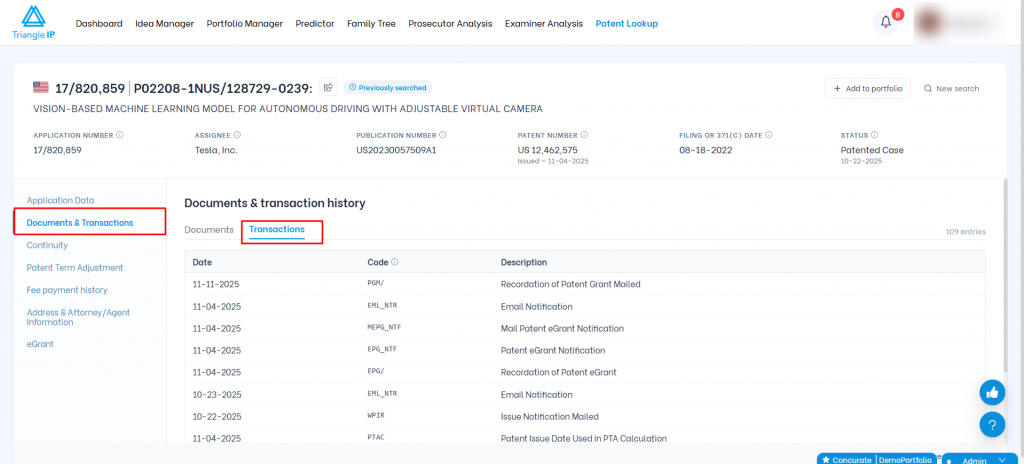
Use this to find out the complete prosecution history of the application. You can download and share documents as a PDF with your patent prosecutors, researchers, and other users analyzing patent prosecution
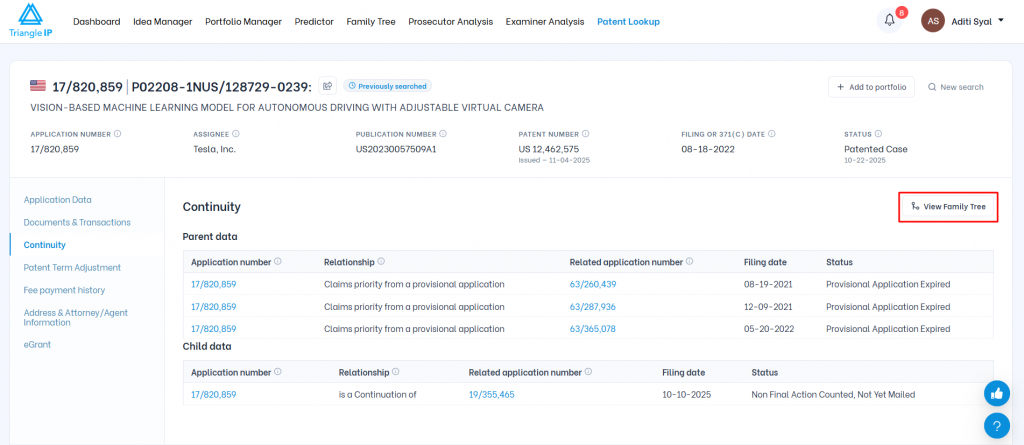
3. Continuity
Patents rarely stand alone. This tab maps the application to the rest of its family through two tables.
- Parent data shows the earlier filings this application claims priority from.
- Child data shows the later filings that came out of it, such as a continuation.
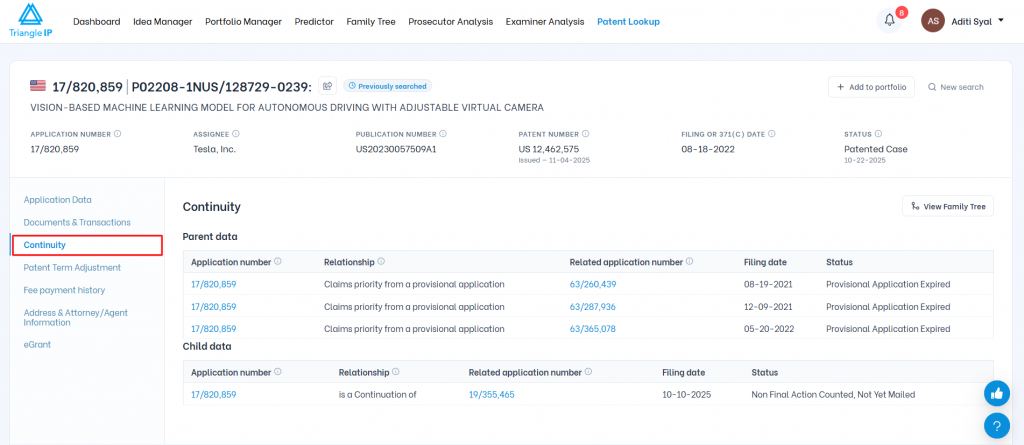
Every related application number is a link. Click one to open that application in Patent Lookup.
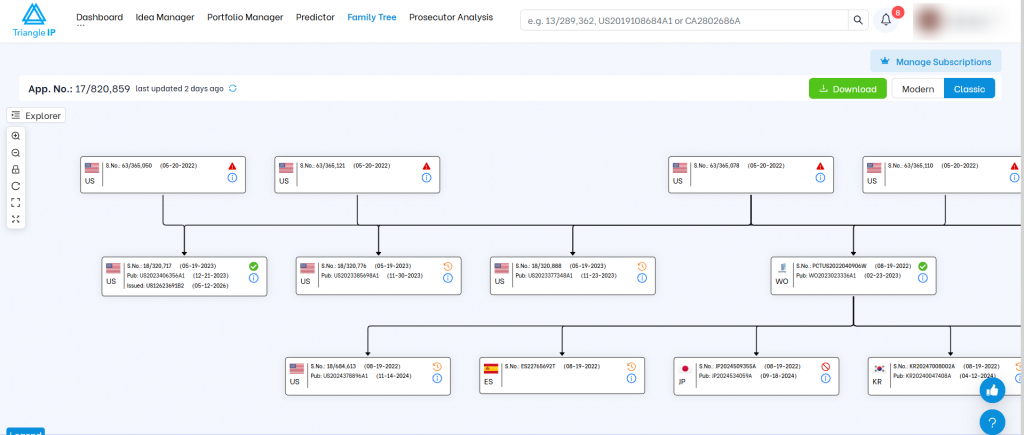
To view the complete patent family tree, click on the View Family Tree button.
Use this to understand the relations in the family tree and filing opportunities. A live child application often means the assignee is still expanding claim coverage in that area.
4. Patent Term Adjustment
A patent’s validity is 20 years from its filing date. When the USPTO takes too long at certain stages, it adds those lost days back to the patent’s validity date. This tab shows how many days were added and where they came from.
A Delays
A Delays are days the USPTO took past its own examination deadlines, under 35 U.S.C. 154(b)(1)(A). The law sets four:
- First office action within 14 months of filing
- Reply to the applicant’s response or appeal brief within 4 months
- Action on a Board or court decision within 4 months
- Patent issued within 4 months of the issue fee
Only the days past a deadline count. A first office action at 18 months adds 4 months of A Delay.
B Delays
B Delays are days the USPTO took beyond 3 years from filing to issue the patent, under 154(b)(1)(B). B Delays stop being counted once a Request for Continued Examination is filed. Only the days before that point count.
C Delays
C Delays are days spent on an appeal that succeeded. If the Board reversed the examiner’s rejection, the time your appeal took gets added back, under 154(b)(1)(C). Two rarer situations also count, which are disputes over who invented something first and national security restrictions.
Overlapping Days
Overlapping Days are days that fall under more than one delay type. The tool counts them once.
Non-Overlapping USPTO Delays
Non-Overlapping USPTO Delays are the total USPTO delay after the overlapping days are removed.
PTO Manual Adjustments
PTO Manual Adjustments are any manual changes the USPTO made to the calculation.
Applicant Delays
Applicant Delays are the days delayed during prosecution because of the applicant. These get subtracted.
Total Patent Term Adjustments
Total Patent Term Adjustments is the net number of days added to the patent’s term.
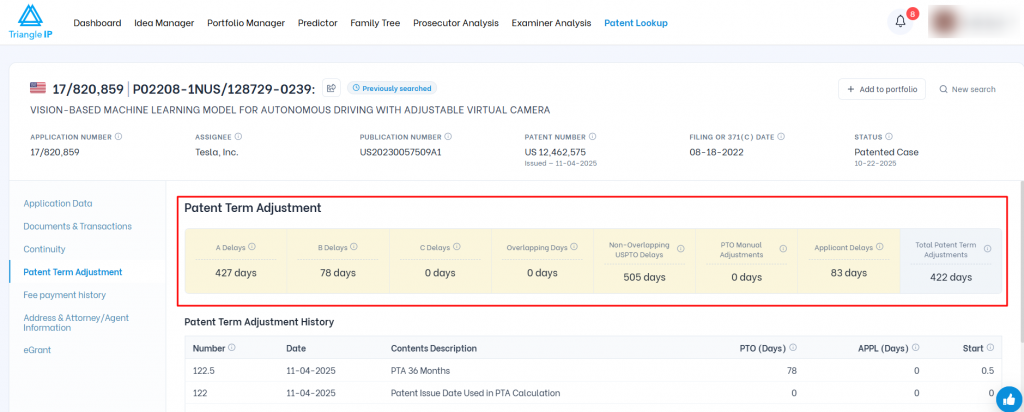
You can also view the Patent Term Adjustment History, breaking down the total delays event by event.
- Number is the ID the USPTO gives that event.
- Date is when the event happened.
- Contents Description explains what the event was
- PTO (Days) are the delay days charged to the patent office for that event
- APPL (Days) are the delay days charged to the applicant
- Start points to the earlier event that the delay period is measured from
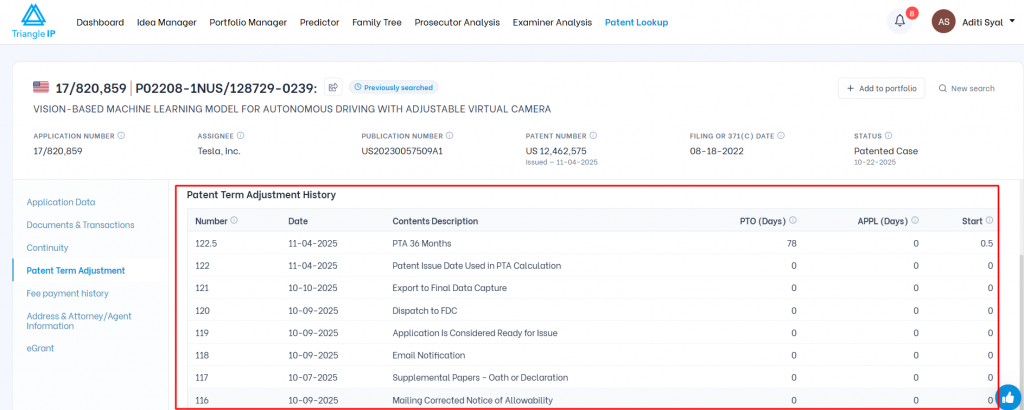
Use this to calculate the real expiry date of a patent rather than assuming a flat 20-year term from filing. It also shows you how much term was lost to applicant delays.
5. Fee Payment History
This tab lists each fee recorded against the application, with its code, description, and date.
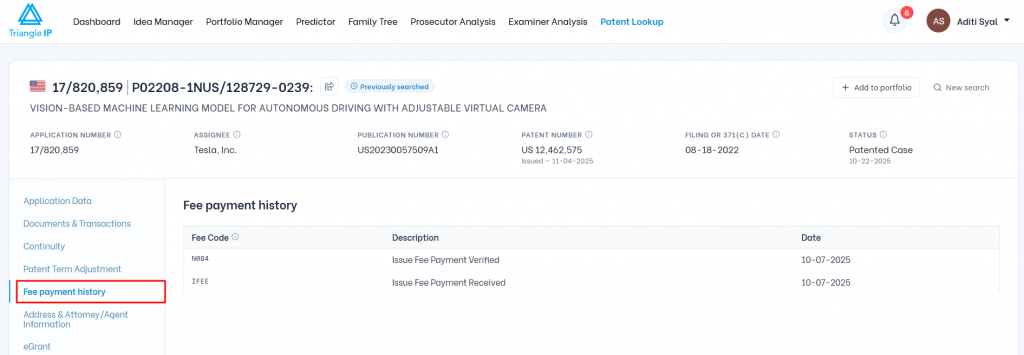
It is a quick check on whether an issue fee or maintenance fee has been processed.
6. Address & Attorney/Agent Information
This tab shows who is handling the application at the USPTO. You get three address blocks:
- Power of attorney, with the customer number and firm address
- Correspondence address, showing where the USPTO sends mail
- Maintenance fee address
Below the addresses sit the attorneys and agents on record. Each entry gives a name, a registration number, and a phone number.
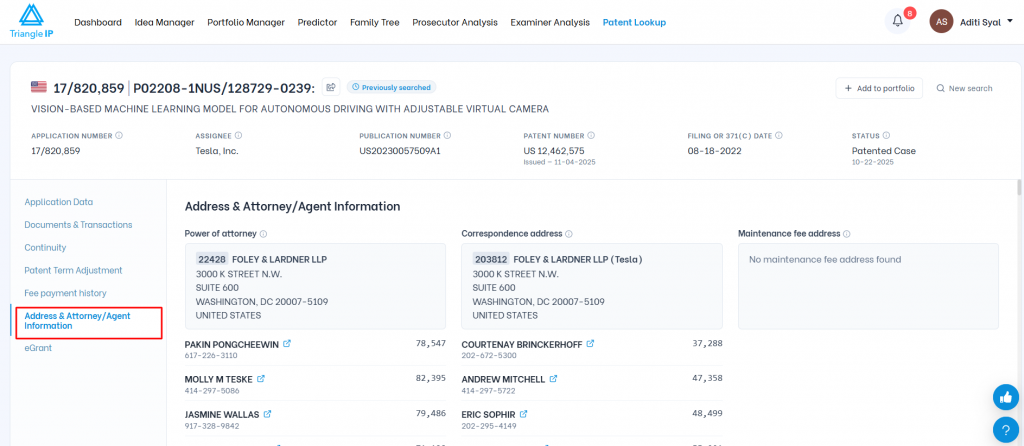
Use this to identify which firm a competitor uses and who to contact on a specific patent application.
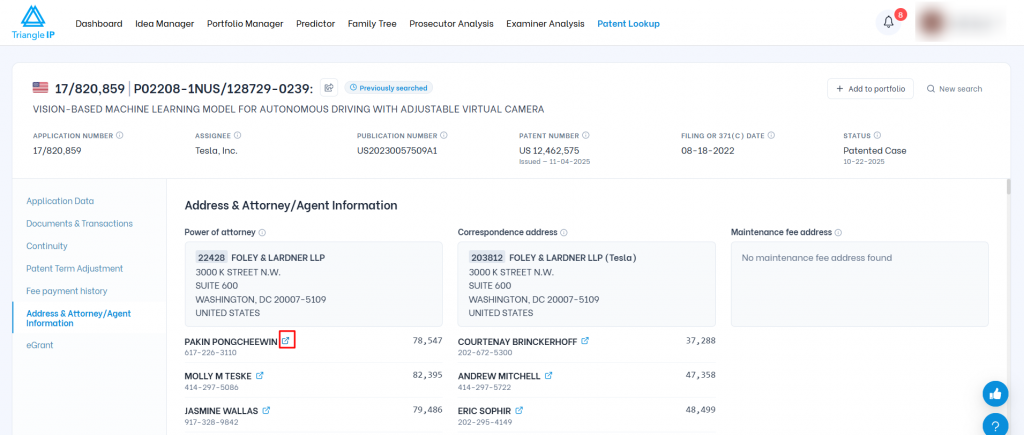
You can view the patent attorney’s statistics, like the average allowance rate with respect to the examiner, grant time, and more, by clicking on the external link icon near the attorney’s name.
7. eGrant
The eGrant is the digitally signed official patent document issued by the USPTO. This tab gives you that document plus the day-of notification document, both downloadable in PDF format.
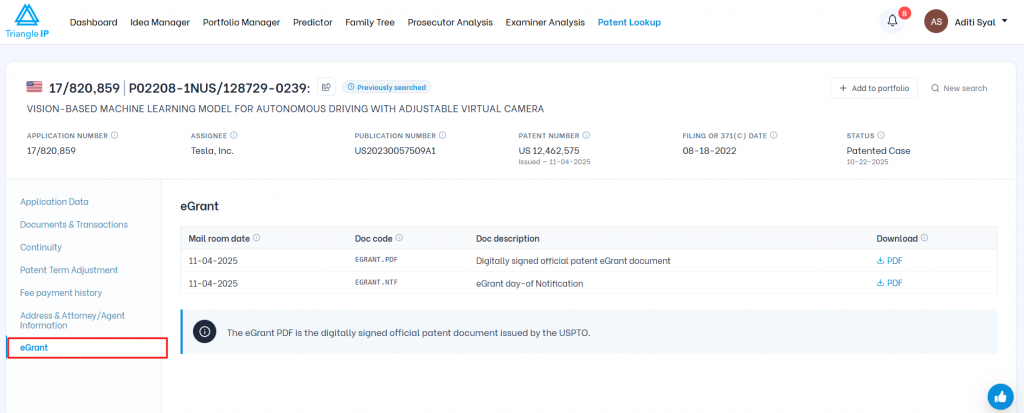
Use this to get the official patent grant copy without going through the USPTO files.
Saving and Sharing What You Find
Patent Lookup gives you two ways to hold on to a record. Add it to your portfolio to track it alongside your other applications. Or share it as a public link that stakeholders can open without a TIP Tool™ account.
Add a Patent Record to Your Portfolio
Click Add to portfolio in the top right of any result to save the application into your patent portfolio.
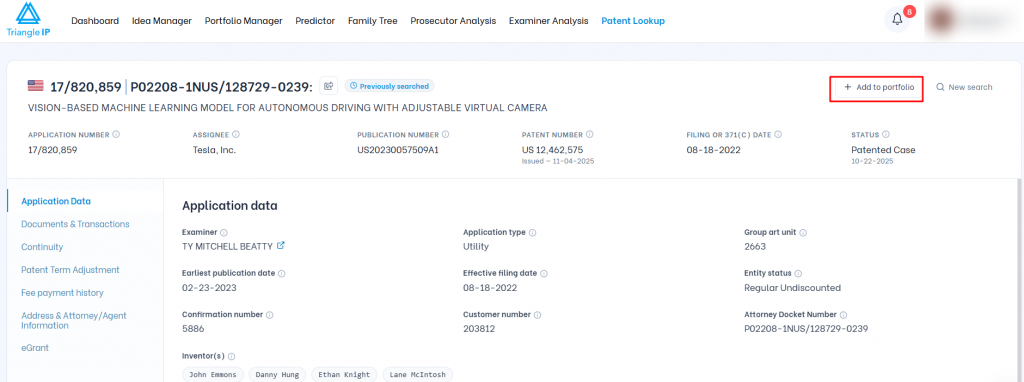
Once added, the application is tracked alongside the rest of your applications in the portfolio.
To know more about adding applications to your portfolio, check our article: Patent Applications Intake.
Share the Patent Record With Anyone
Click the share icon next to the application number. The tool generates a link, which appears beside the number with a copy icon.
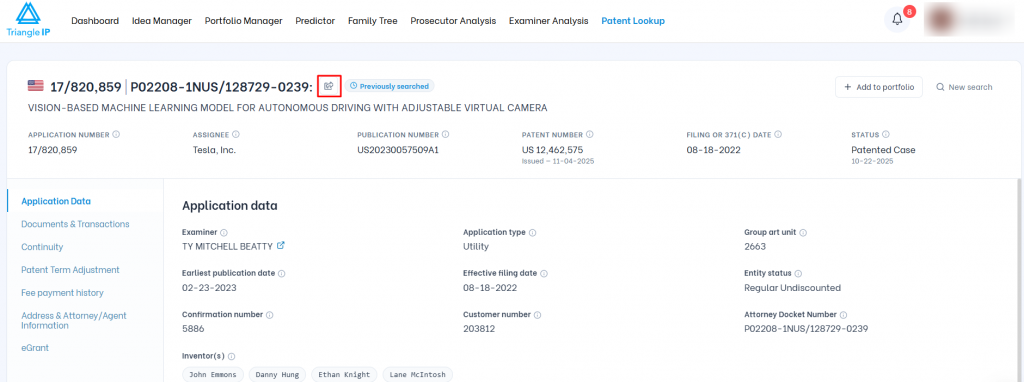
Copy the link and send it on. Whoever opens it can view the full report without logging into the TIP Tool™.
You can click the Delete icon next to the link to stop sharing access.

A confirmation appears telling you the link has been deleted and will no longer open. Anyone still holding that link loses access to the report.

Summary
The granted patent tells you what was allowed. Patent Lookup tells you how it got there.
You can see what was originally filed and how the claims changed along the way. You can read what the examiner rejected and how the applicant answered. Prosecutors and researchers use that detail for claim analysis and for due diligence before a deal.
The examiner and attorney names link straight into Examiner Analysis and Prosecutor Analysis, so you can check their record without a USPTO account.