
We offer two ways to help you understand the solution to this query – pick whichever works best for you:
Prefer to watch? Start with our short walkthrough video that shows you exactly how it works, step by step.
Prefer to read? Scroll down for the full written guide with screenshots and detailed explanations.
When you search for a prosecutor in the TIP Tool™, the default view shows their overall performance across all their cases – every filing, every art unit, every year. That’s a useful starting point, but your decision usually needs more precision than a blended average.
Maybe you only care about how they’ve performed in the last two years. Maybe you want to see their track record in the specific Group Art Unit that matches your technology. Or you might only want to look at cases that reached a final outcome – not ones still in process.
The Advanced Search feature lets you apply exactly those filters – so every section of the prosecutor’s profile (allowance rates, RCE trends, office action patterns, timelines, and the allowance trend chart) reflects only the data that’s relevant to your decision.
Where to Find Advanced Search
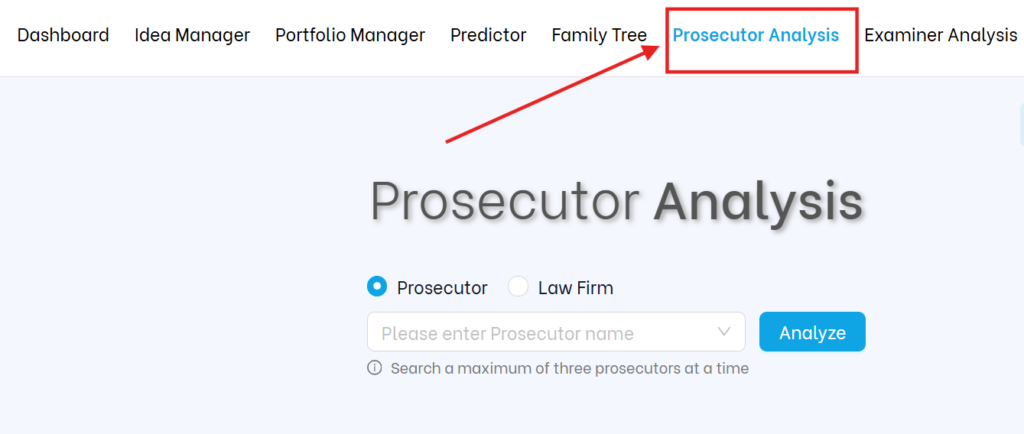
1. Go to Prosecutor Analysis from the top navigation bar in the TIP Tool™.
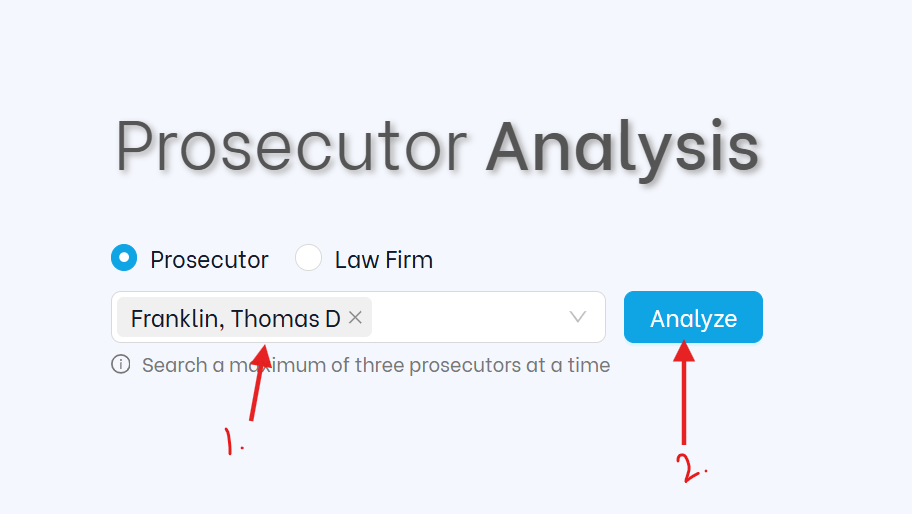
2. Enter the attorney’s name or law firm in the search bar and click “Analyze.”
3. Once the profile loads, look just below the search bar at the top of the results page. Click on “Advanced Search” to expand the filter panel.
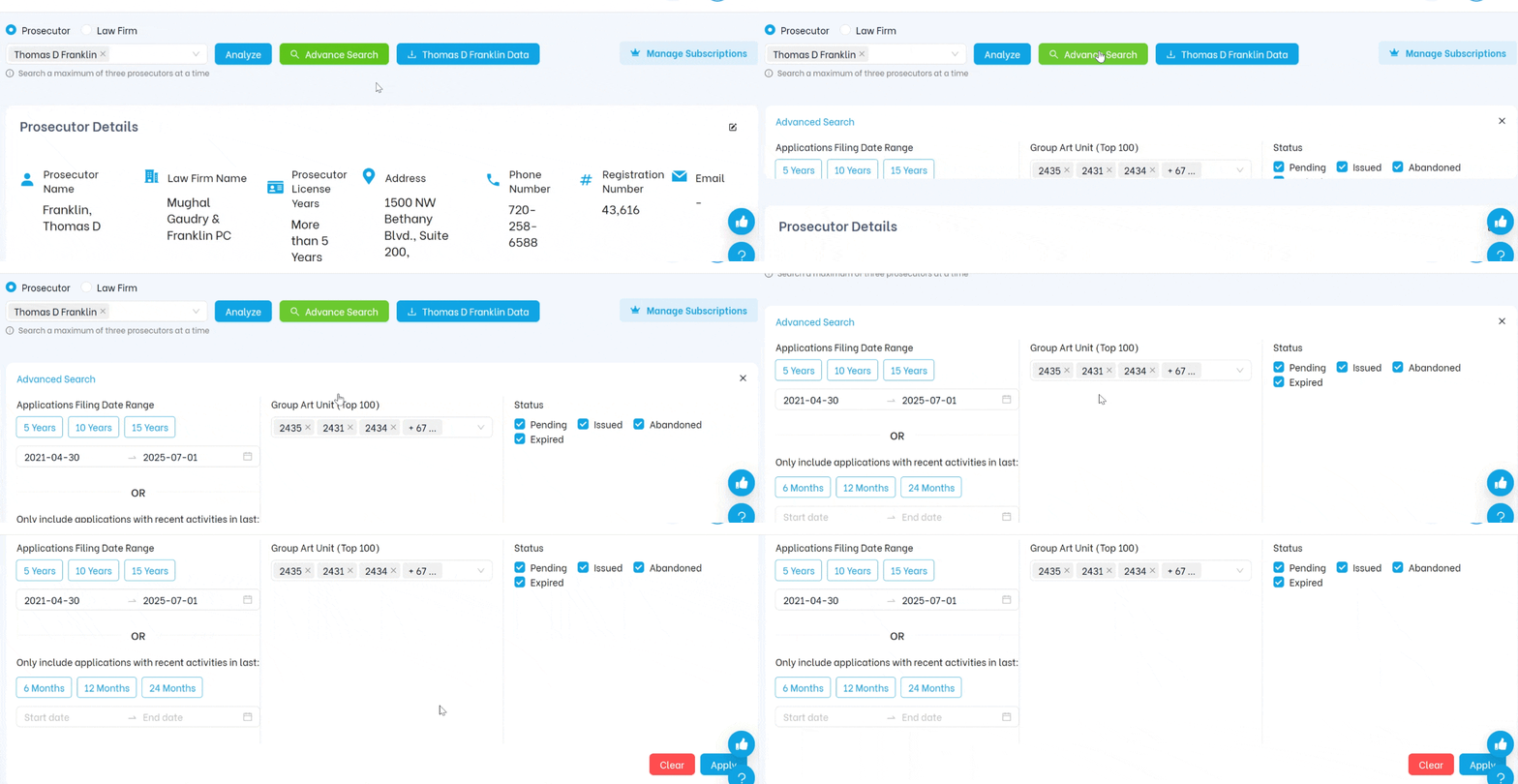
What You Can Filter – And When to Use Each
1. Applications Filing Date Range
Use the calendar pickers to set a start and end date. Every section on the prosecutor’s profile – the allowance rate arc, the profile table, the RCE trend, the office actions chart, and the allowance trend – will update to show only applications filed within that window.
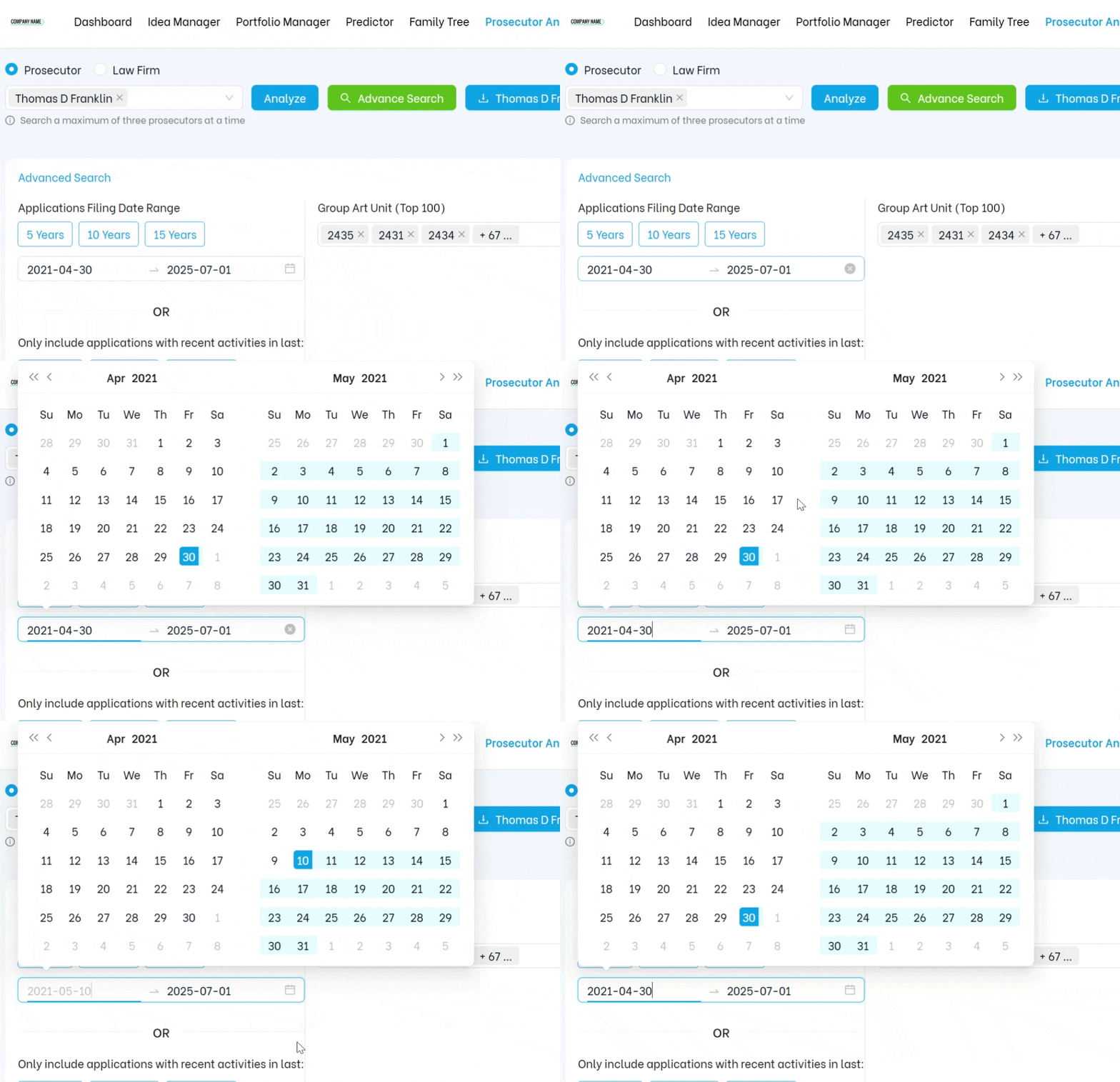
When to use it: Patent law and USPTO examination practices evolve over time. A prosecutor’s record from a decade ago may not reflect how they operate today. If you want to evaluate performance under current USPTO practices, narrow the filing date range to the last two to three years.
Example: “Show me how this attorney performed on applications filed between 2022 and 2024 – the period most relevant to my upcoming filings.”
2. Recent Activity Window
Instead of setting custom dates, you can select a predefined recent activity window to only include applications that had updates in the last:
- 6 months
- 12 months
- 24 months
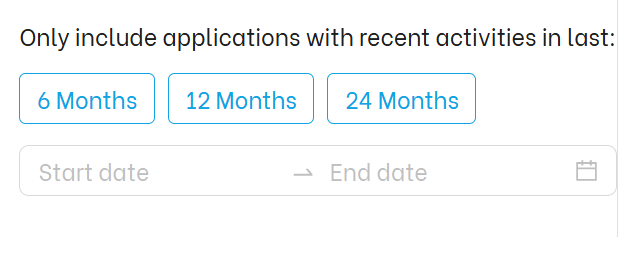
When to use it: This is the fastest way to check whether a prosecutor is currently active. Someone may have an impressive historical track record but be largely inactive today – retired, reduced workload, or no longer taking new clients. The Recent Activity filter separates past performance from present availability.
| 💡 If you’re evaluating counsel for a matter you need to start in the next few months, always check recent activity first. A strong but inactive attorney won’t serve your timeline. |
3. Group Art Unit (GAU)
Choose one or more GAUs to restrict the prosecutor’s data to a specific technology domain. The allowance rate, profile table, issuance times, office action comparison, and all other sections will update to reflect only cases in those art units.
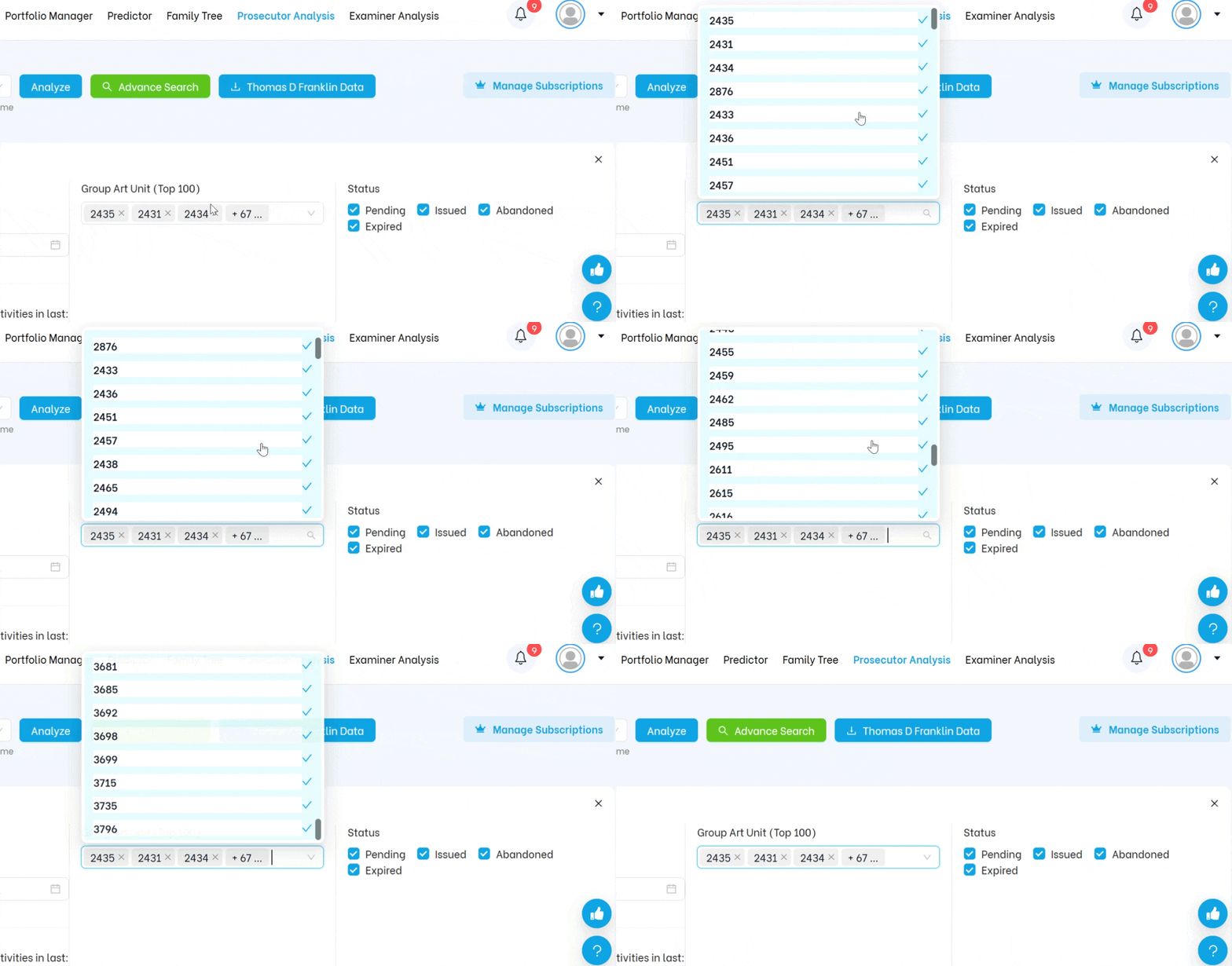
When to use it: Many prosecutors work across multiple technology areas – and their performance can vary significantly between them. A blended average across all their GAUs may not tell you anything useful about how they’ll perform in your specific art unit.
Example: “This attorney has a strong overall allowance rate, but I need to know their record specifically in GAU 2435 – the art unit where my applications are likely to land.”
| Tip: You can select multiple GAUs at once if your technology spans more than one domain. The profile will aggregate data across all selected art units. |
4. Case Status Filters
Choose which types of applications to include in the analysis:
- Pending – Applications still in process (useful for assessing current active workload)
- Issued – Granted patents (useful for studying what successful prosecution looks like for this attorney)
- Abandoned – Cases that were dropped (useful for studying failure patterns and prosecution risks)
- Expired – Patents that have lapsed
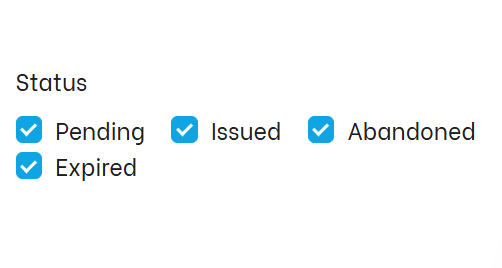
When to use it: Different questions call for different status filters. If you want to understand how successfully a prosecutor gets cases to grant, focus on Issued. If you want to study what happens when prosecution fails – and whether the patterns reveal anything about their strategy – look at Abandoned. For understanding their current workload and capacity, Pending gives you the picture.
| 💡 Combining Issued and Abandoned together is a useful way to study the full outcome picture – wins and losses – for a specific time period or art unit, without pending cases skewing the numbers. |
Pro Tip: Combine Filters for Sharper Insights
The real power of Advanced Search comes from using multiple filters together. Instead of a blended overall average, you can build a view that matches your exact scenario and read every section of the prosecutor’s profile through that specific lens.
Here are some practical filter combinations:
| What You Want to Know | Filters to Combine |
| Is this attorney strong in my specific art unit right now? | GAU filter (your art unit) + Recent Activity (last 12 months) + Status: Issued |
| What does failure look like for this prosecutor in my technology area? | GAU filter + Filing Date Range (last 3 years) + Status: Abandoned |
| Is a historically strong prosecutor still actively taking work? | Recent Activity (last 6 months) + Status: Pending |
| How did cases filed during a specific regulatory period turn out? | Filing Date Range (e.g., 2020-2022) + Status: Issued + Status: Abandoned |
| How does this attorney perform in my art unit vs. their overall average? | GAU filter only – then compare the filtered profile table against the unfiltered view |