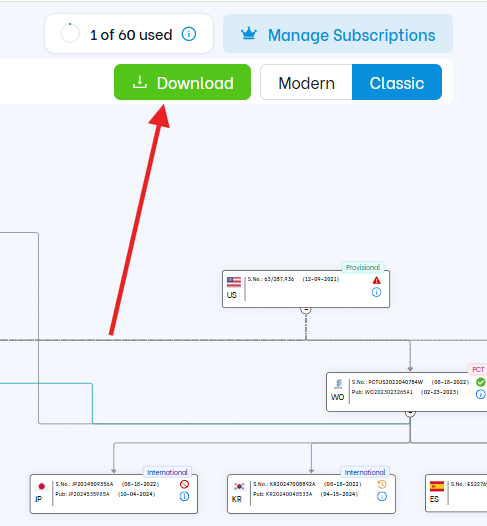
Large patent family trees can be difficult to navigate, especially when applications and their connections extend beyond your screen. The new Tree Explorer feature in the TIP Tool™ helps you view, arrange, and explore these complex family trees more easily.
Prefer watching? Check out the video walkthrough below.
Prefer reading? Follow the guide below to learn how to use Tree Explorer.
If you’re new to the Family Tree feature, start with our Family Tree visualization guide, which includes a walkthrough of how to plot and understand the family tree for your patent application.
We’ve recently introduced Tree Explorer, a new feature that makes viewing large and complex patent family trees much easier. Whether you want to focus on specific branches, rearrange applications, or navigate a tree that extends beyond your screen, Tree Explorer gives you the controls to do so.
In this guide, we’ll walk you through how to access Tree Explorer and use its different options to get a clearer view of your large patent family trees.
How to Use Tree Explorer in the TIP Tool™?
Open the Family Tree for your patent application and click Explorer. The Tree Explorer panel will appear on the left, showing the list of application numbers in your patent family.
Here’s how you can use it:
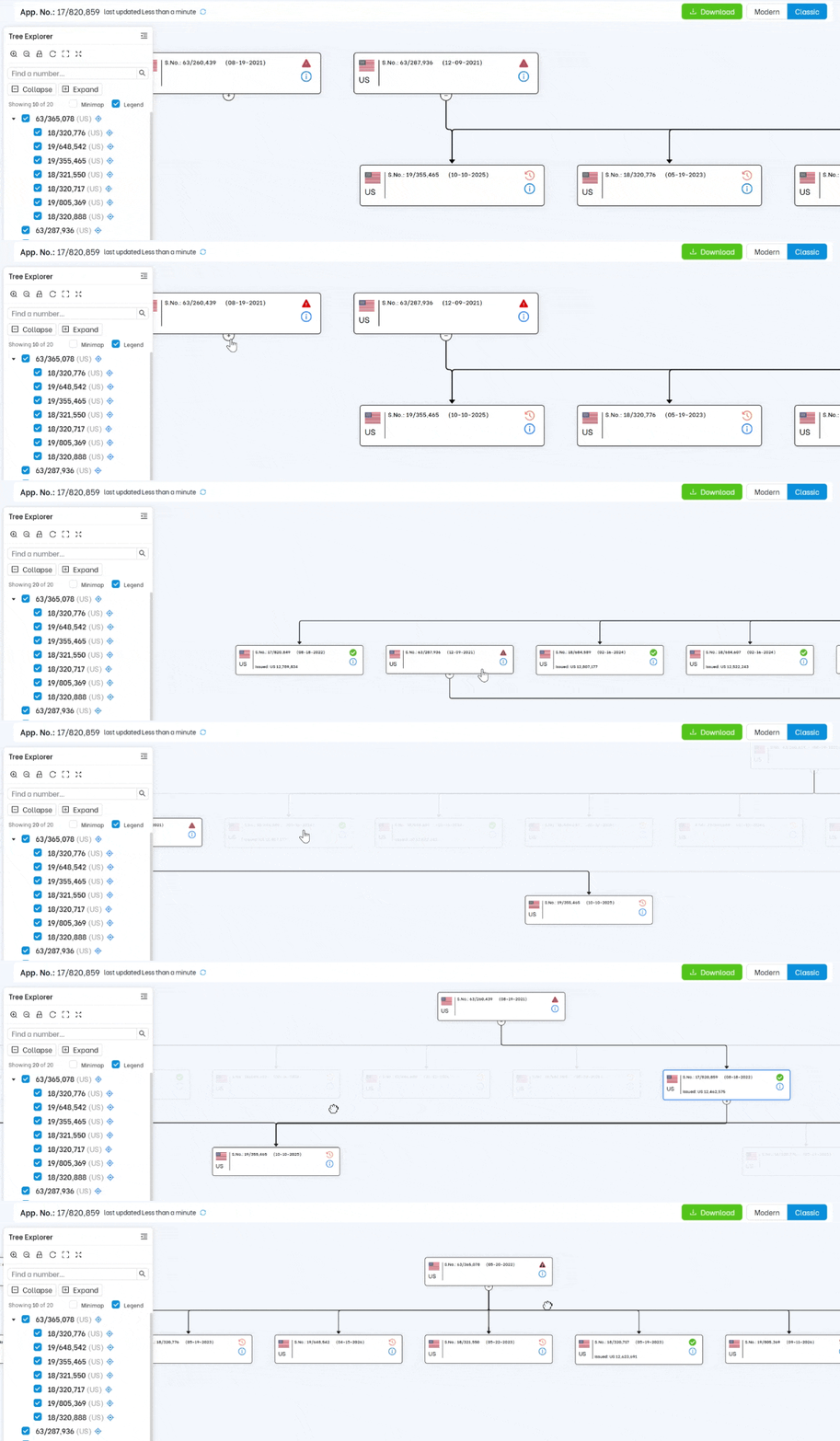
- Show or hide applications: Use the checkboxes next to the applications to choose which ones appear in your family tree.
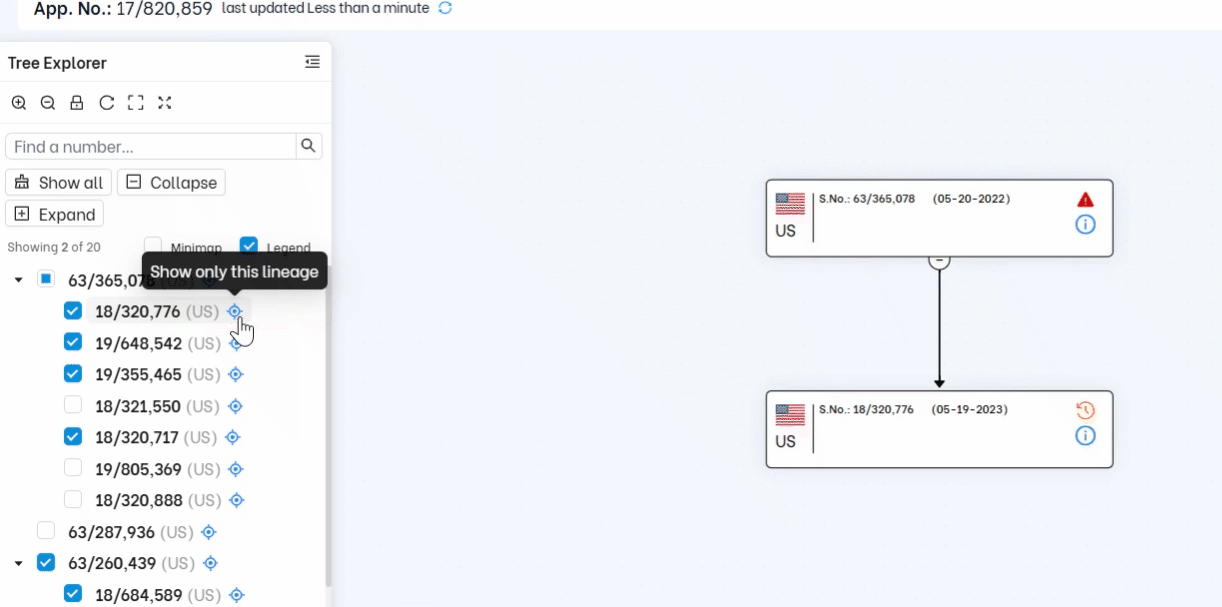
- View a specific lineage: Click the blue target icon next to an application to view only its lineage, without unrelated branches.
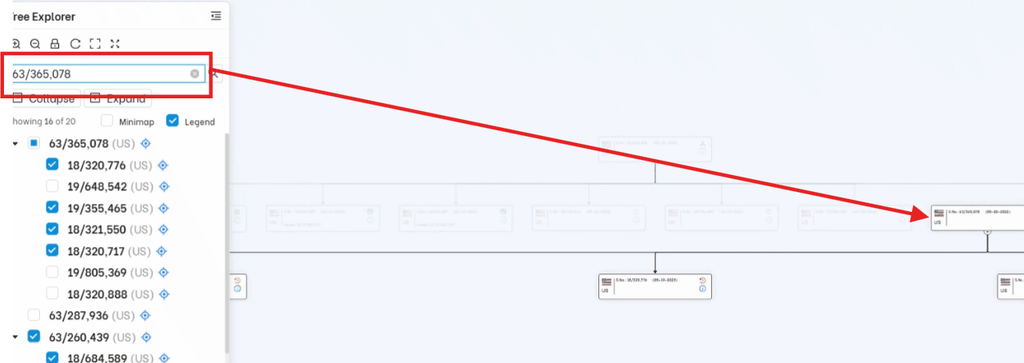
- Find an application: Enter its number in the Find a number… search box to locate it quickly.
- Use the Mini Map: Select Minimap to see an overview of the entire family tree in the bottom-right corner. The highlighted area shows which part of the tree you’re currently viewing.
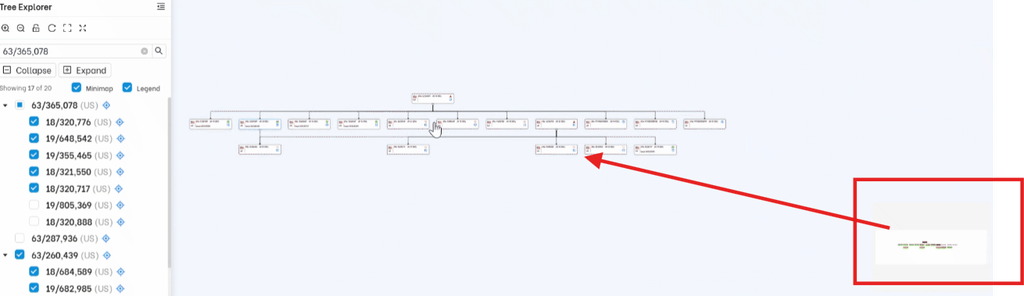
- Move applications around: Click Unlock Dragging to move nodes and arrange the tree the way you want. Once you’re done, click Lock Dragging to prevent accidental changes. You can also use Reset Layout to restore the original arrangement.
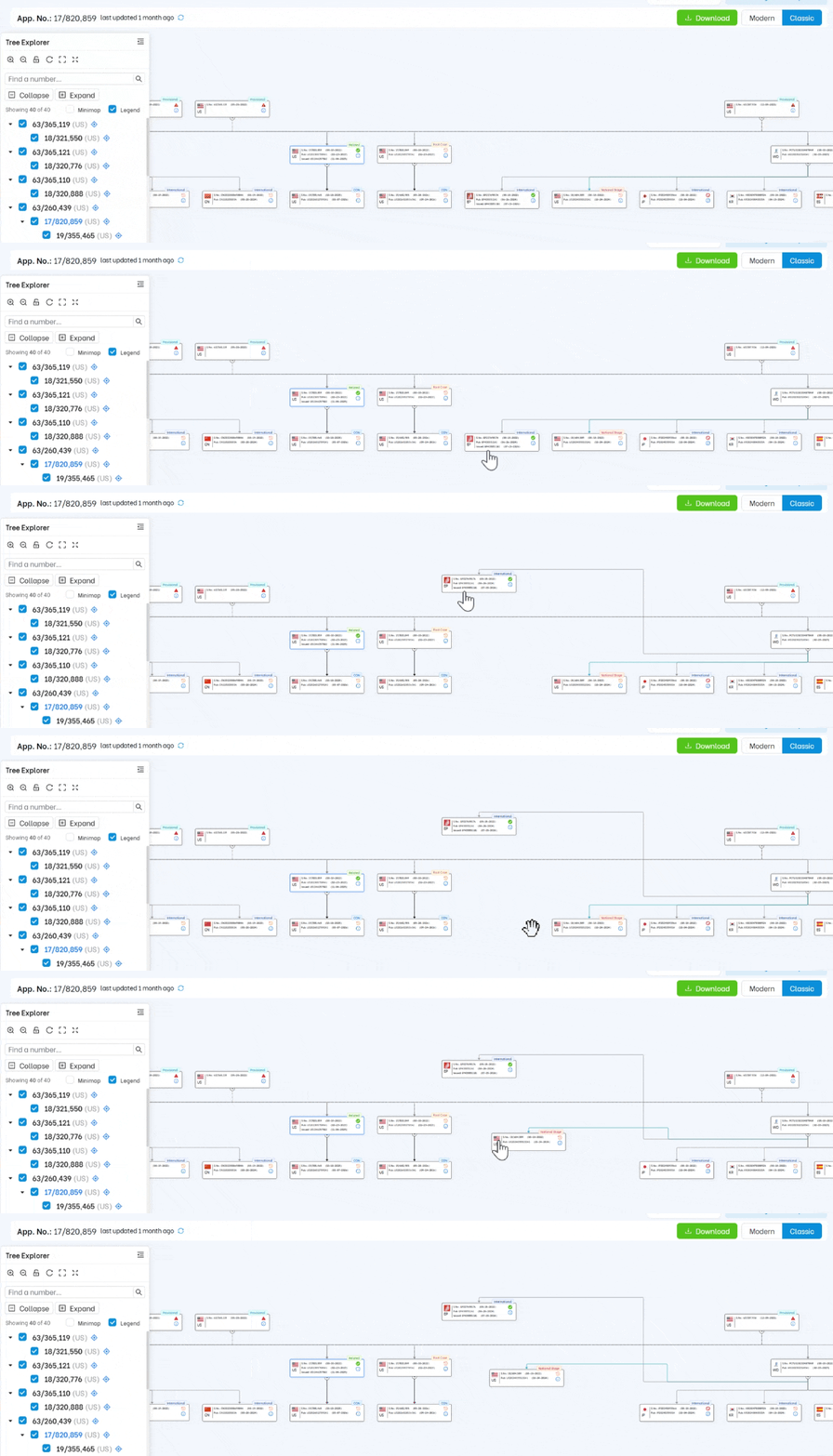
After all of the adjustments, once you’re happy with the arrangement, click the green Download button to save the family tree as an SVG file. You can then share it with your team.