
We offer two ways to help you understand how the Sponsorship feature works — pick whichever suits you best:
Prefer to watch?
Start with our short walkthrough video that shows you how Sponsorship is used to securely sync private patent application data in the TIP Tool™.
Prefer to read?
Scroll down for the full written guide with step-by-step explanations.
What Exactly is this Sponsorship Feature in the TIP Tool™?
Some patent applications are not publicly available and can only be accessed through USPTO Private PAIR.
The Sponsorship feature in the TIP Tool™ allows users to securely access private patent application data by using the USPTO-provided authorization system called Sponsorship. This allows users to authorize Triangle IP to access the private data connected to their USPTO customer number without sharing their USPTO credentials.
Once Sponsorship is set up, the TIP Tool™ can securely sync private application data for applications that are already present in the portfolio or listed under Applications Not Synced.
This is important because the system does not fetch all applications under the customer number. It only processes the applications that are already available in that portfolio context inside the TIP Tool™.
How to Use Sponsorship (Step-by-Step)
Step 1: Navigate to the Portfolio Manager and open the portfolio where the applications are present.
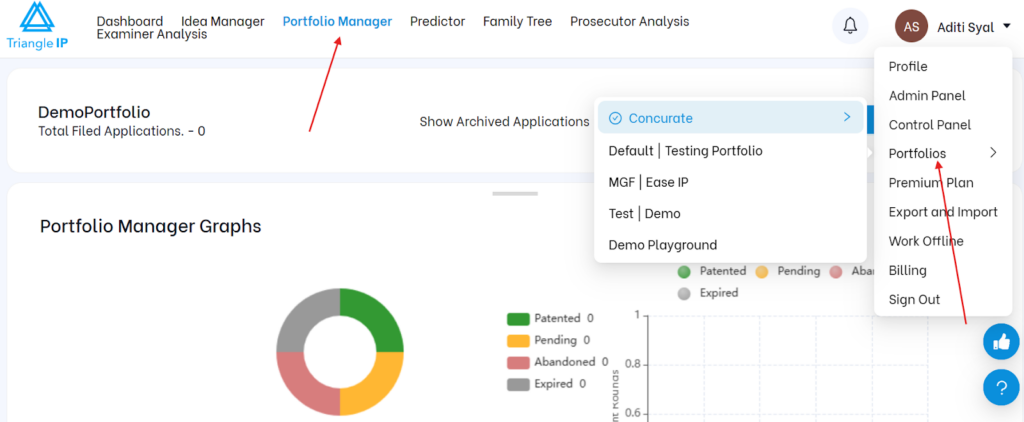
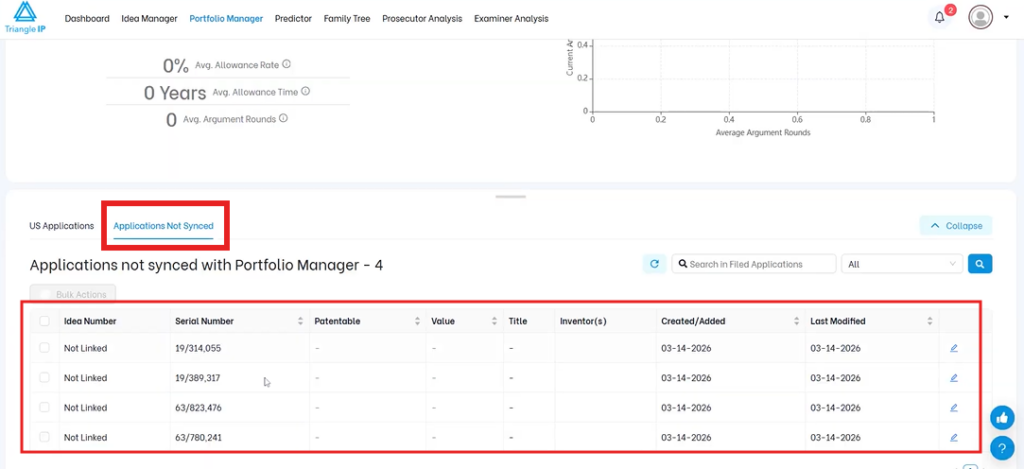
Note: If private applications are already added but cannot be synced through public data, they may appear under Applications Not Synced. These are the applications Sponsorship is designed to help process securely.
Step 2: Just adjacent to Add Applications you can spot this Sponsorship button.
Step 3: Click on that Sponsorship button.
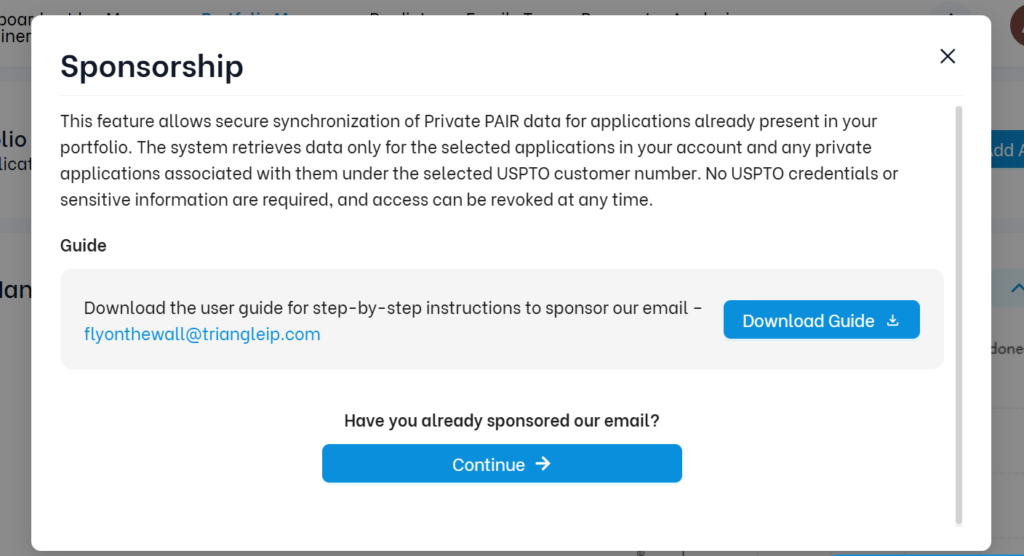
Note: If you have not yet sponsored Triangle IP, there is a separate user guide available that explains how to sponsor [email protected] through the USPTO system.
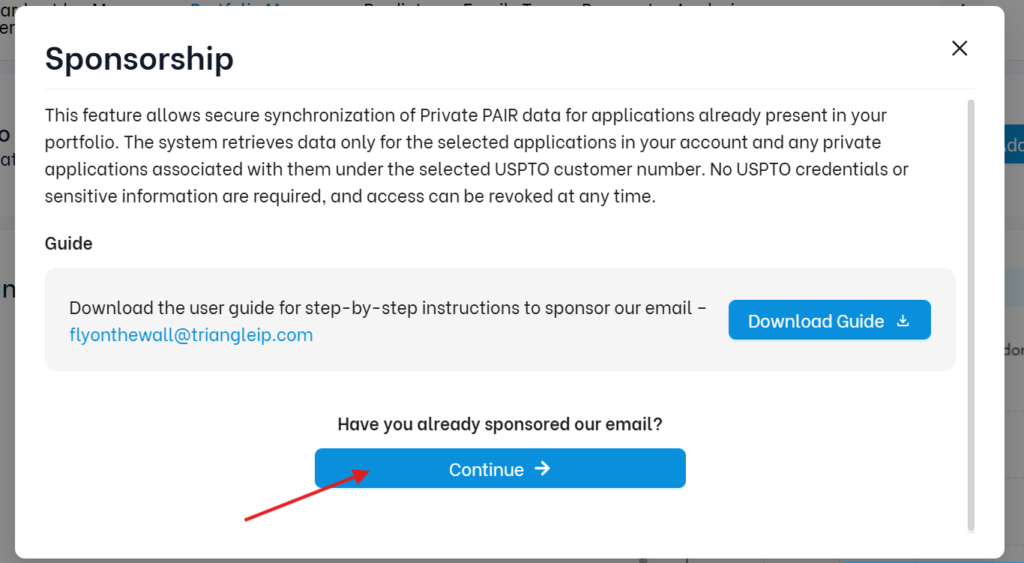
Step 4: Click Continue to begin the Sponsorship process.
Step 5: You will be asked to enter the email address that has already sponsored Triangle IP through the USPTO system.
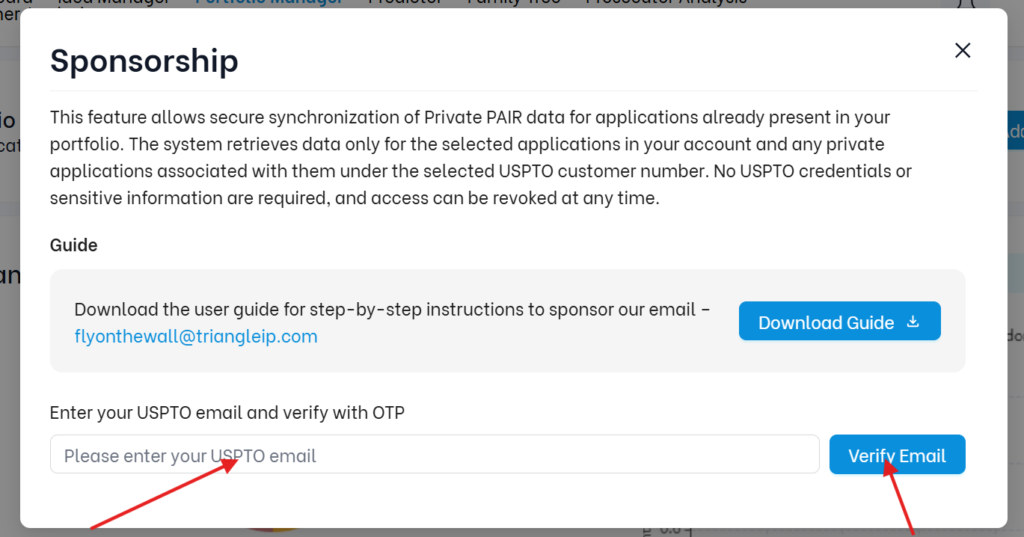
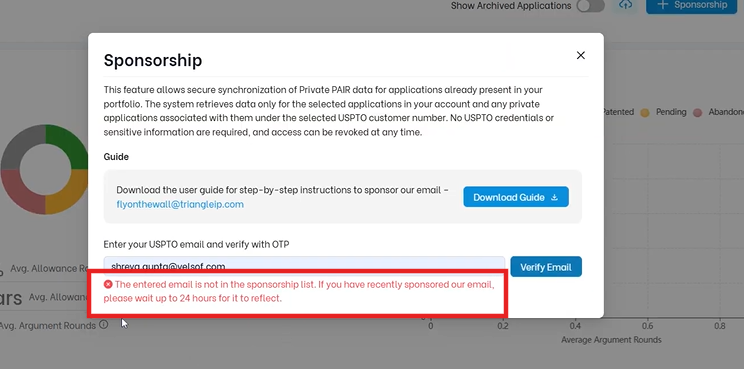
If the email is not yet available in the sponsorship list, the system will show a message indicating that the entered email is not in the sponsorship list.
Note: If you recently completed sponsorship, wait up to 24 hours and try again.
Step 6: Once the email is recognized, the TIP Tool™ sends a one-time password (OTP) to that email address to verify ownership.
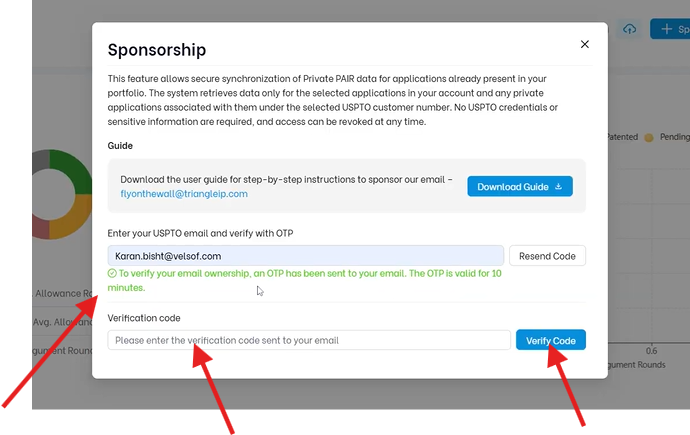
Step 7: Enter the OTP and click to verify the code.
The OTP is valid for 10 minutes.
Note: Users are allowed a maximum of 3 attempts to enter the correct OTP. If all three attempts are used, a new OTP must be requested.
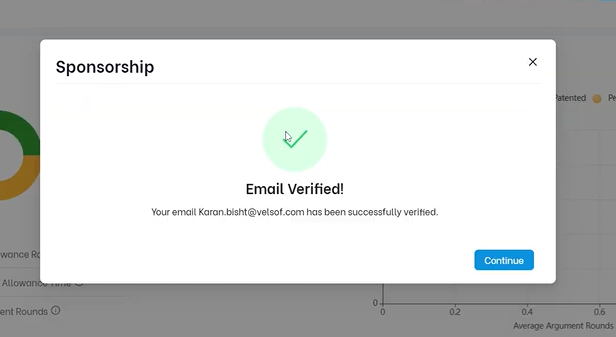
Step 8: After successful verification, select the USPTO customer number you want to link to the account.
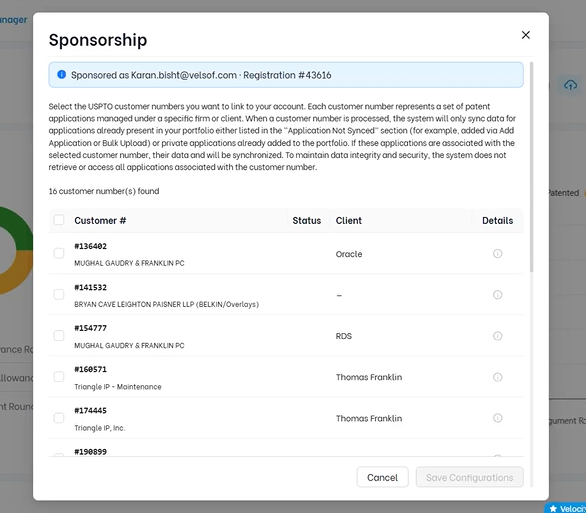
Each customer number represents a set of patent applications managed under a specific firm or client. The TIP Tool™ may also display related details such as the associated name, email, and phone number.
Step 9: You will be asked to review changes and then Confirm and Save.
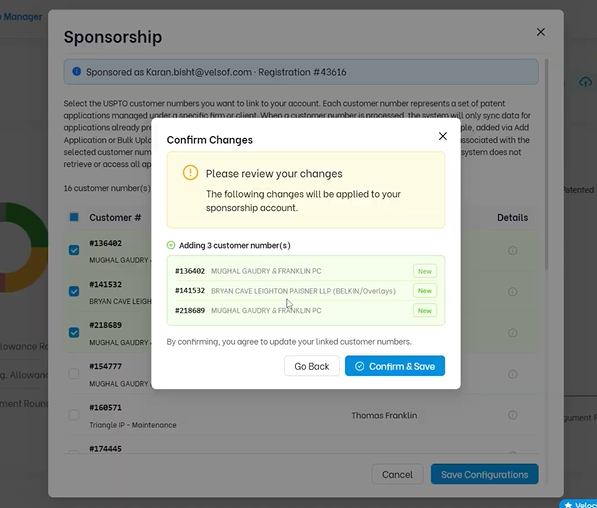
Once confirmed, the selected customer number will be processed in the background.
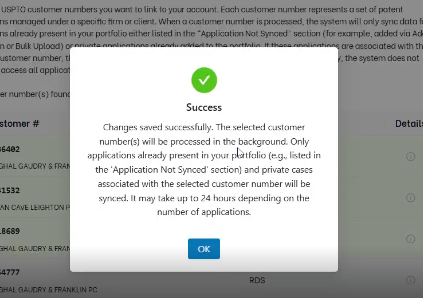
Wait for the synchronization process to complete.
The TIP Tool™ will update the applications already present in the portfolio or listed under Applications Not Synced.
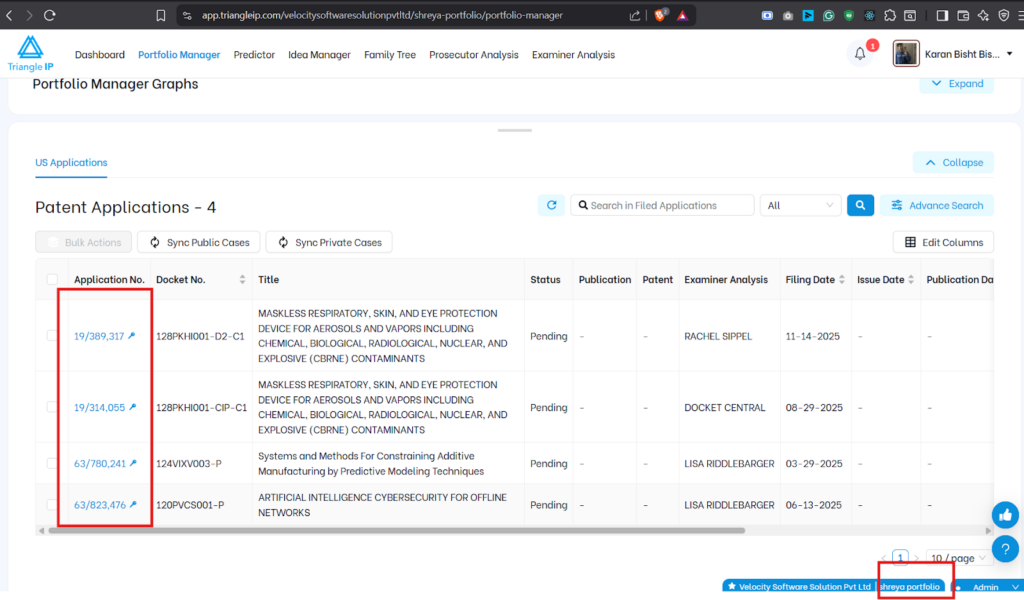
Note: The background sync may take up to 24 hours to complete.
Why This Feature Matters
Private patent application data is not available through public USPTO sources, which makes it harder to keep portfolio records complete and up to date.
The Sponsorship feature solves this by allowing users to securely authorize access to that private data through the USPTO’s official Sponsorship mechanism. This means users do not need to share USPTO login credentials in order to allow the TIP Tool™ to retrieve relevant application data.
Just as importantly, the TIP Tool™ only processes applications that are already present in the portfolio or listed under Applications Not Synced. It does not pull all applications associated with the USPTO customer number. This helps maintain data security, privacy, and control, while still giving users a way to update private application records inside the portfolio.
As a result, users can maintain better visibility into private applications, keep portfolio records updated, while rely on a secure and controlled synchronization process.