
We offer two ways to help you understand how to track the status of your patent application — pick whichever works best for you:
Prefer to watch?
Start with our short walkthrough video that shows you exactly how it works, step by step.
Prefer to read?
Scroll down for the full written guide with screenshots and detailed explanations.
How Patent Status Tracking Works in the TIP Tool™
Tracking patent status in the TIP Tool™ is a continuous process that starts once an application is added and continues throughout prosecution. The system relies on USPTO data, which is synced into the platform and reflected at both the application and portfolio levels.
The steps below explain how status data enters the system, how it is updated, and how users review it.
Step 1: After a patent application is filed, it must first be added to the TIP Tool™.
You can add an application by:
i) Manually entering the application number
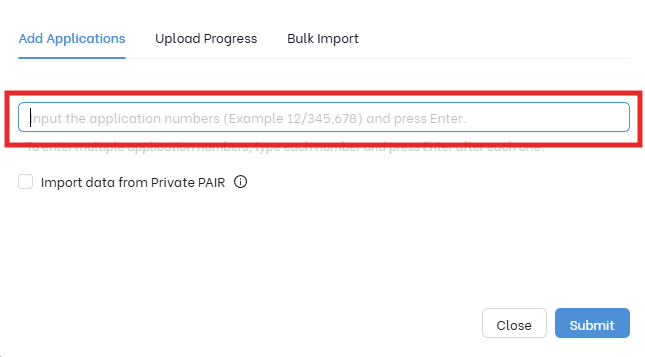
Enter the U.S. application number in the TIP Tool™.
- For public cases, simply enter the application number. No additional action is required.
- For private cases, select the “Import data from Private PAIR” option and enter your USPTO account credentials to retrieve the application data.
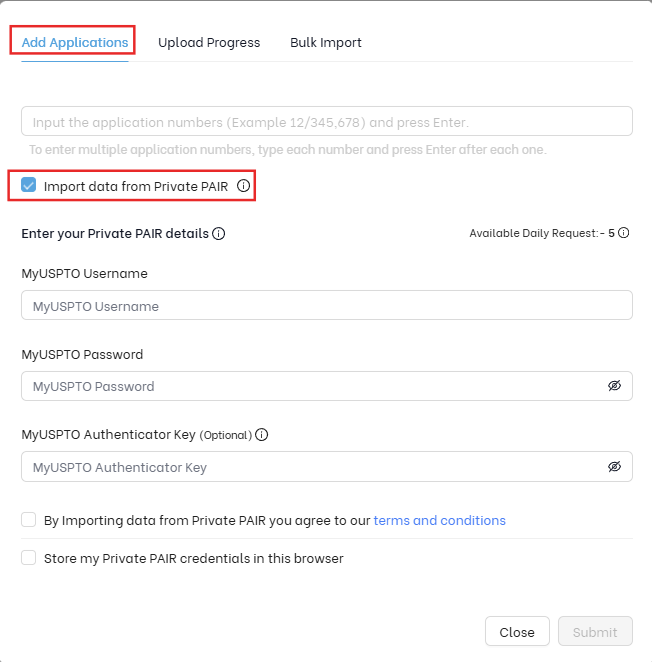
This method pulls official prosecution information directly from the USPTO and is commonly used when adding individual U.S. applications.
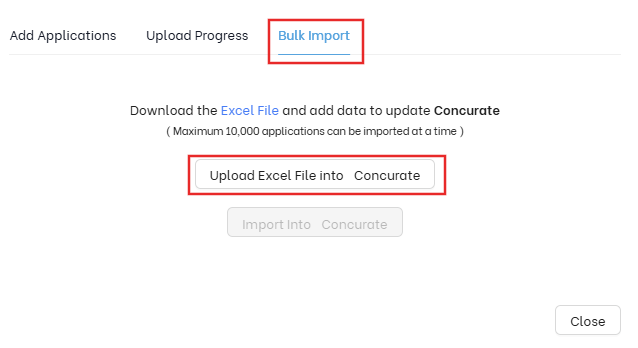
ii) Using Bulk Import with an Excel file.
In addition to adding applications directly in Portfolio Manager, the TIP Tool™ offers a Docketing System Sync for importing or updating application data from external docketing systems. This feature is configured in the Control Panel and uses Excel or CSV exports from your docketing software to keep application records aligned in the TIP Tool™.
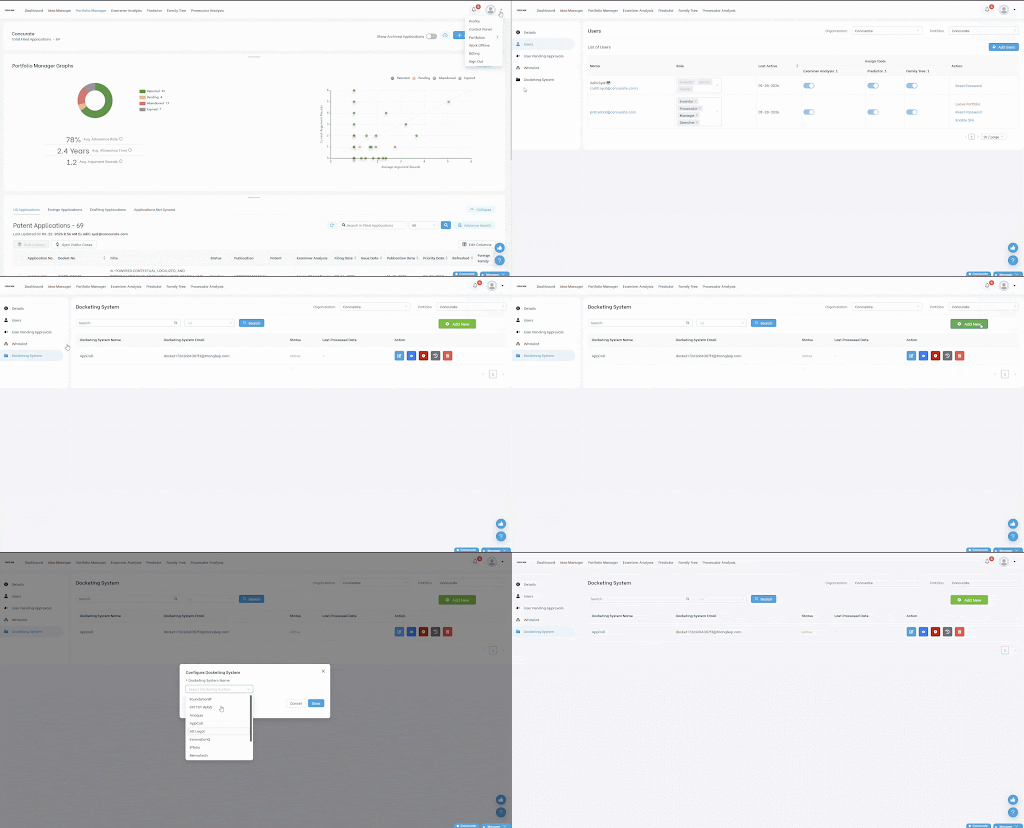
Once the application is added, it appears in Portfolio Manager.
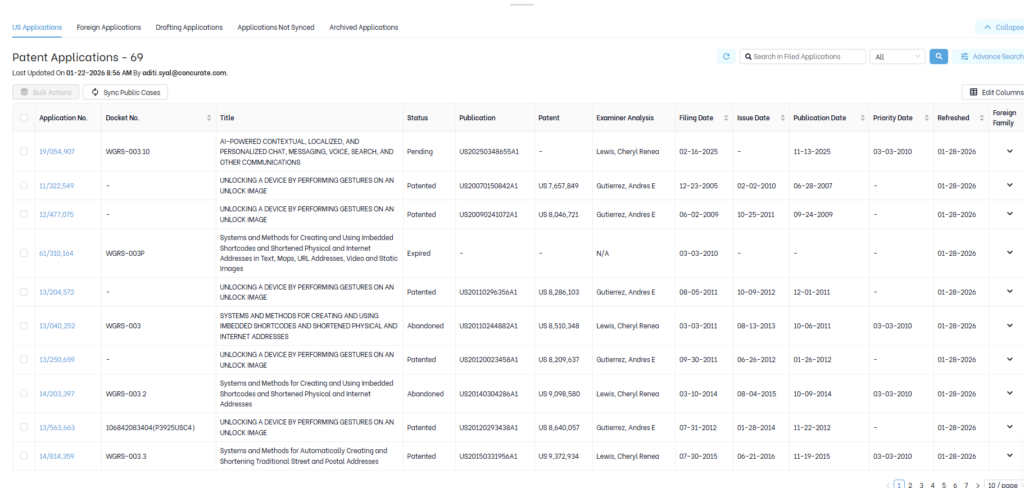
Step 2: Sync the Application with the USPTO
After the application is added, the TIP Tool™ retrieves official prosecution data from the USPTO.
- Public applications are synced directly using USPTO public data.
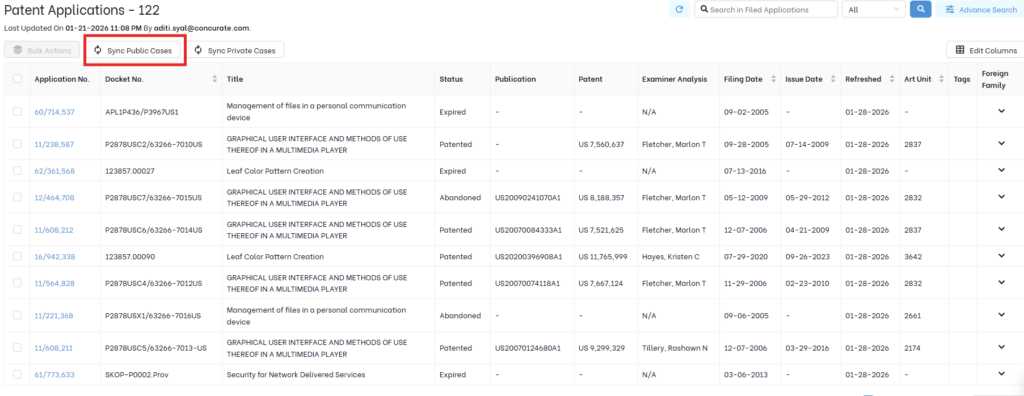
- Private applications require users to authenticate using USPTO Private PAIR credentials.
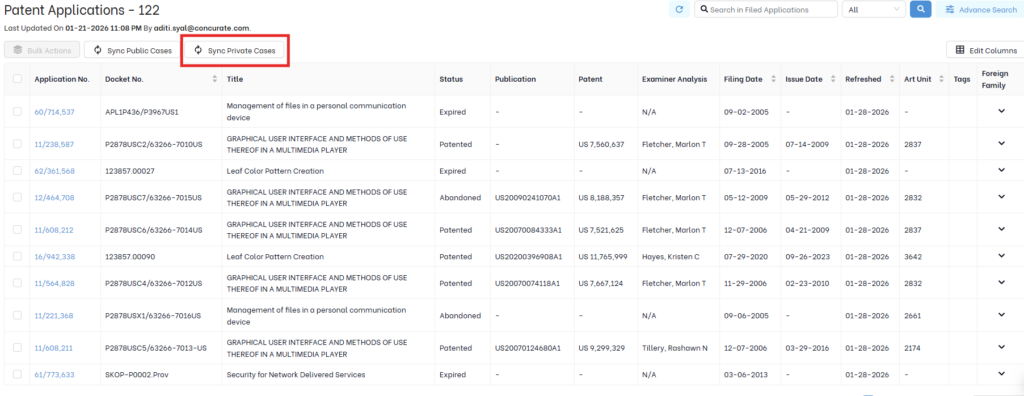
This sync ensures that the application’s status and prosecution history in the TIP Tool™ match the official USPTO records and serves as the source of truth for status tracking.

Using Bulk Actions (Optional)
When managing multiple applications, you can use bulk actions in Portfolio Manager to sync applications, apply or update tags, and export data in a single action. This reduces manual effort and helps maintain consistent tagging, data accuracy, and reporting across large portfolios.
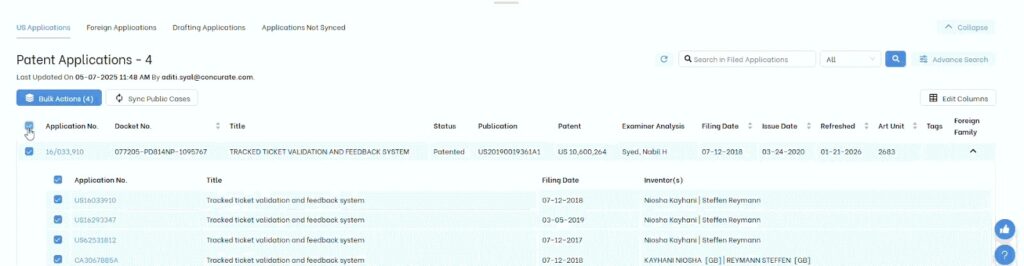
Step 3: Based on the latest action recorded at the USPTO, the TIP Tool™ displays the application’s USPTO status.
The Status column shows one of the following:
- Pending – The application is under examination at the USPTO and has not yet reached a final outcome.
- Patented – The application has been granted and issued as a patent by the USPTO.
- Abandoned – The application is no longer active, typically due to non-response or an explicit decision to abandon.
- Expired – The patent has reached the end of its enforceable term or lapsed due to non-payment of maintenance fees.
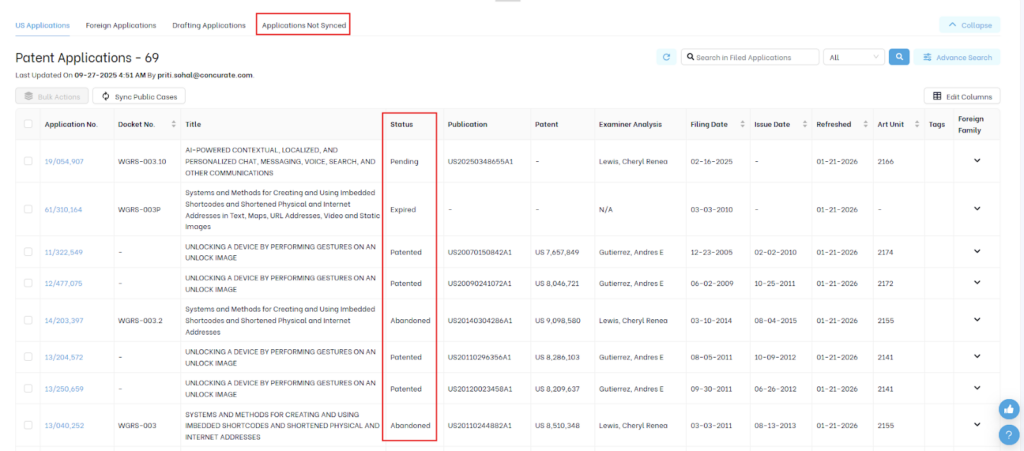
Additionally: If the TIP Tool™ cannot retrieve USPTO data for an application, it appears under the “Applications Not Synced” category.

This may occur if:
- The application number is incorrect or improperly formatted.
- The application is private and Private PAIR credentials were not provided.
- The application is not yet available in the USPTO system or a temporary USPTO connection issue occurred.
Once the issue is resolved and the application successfully syncs with the USPTO, it is automatically removed from this category.
Step 4: Click on an application in Portfolio Manager to open its detailed view.
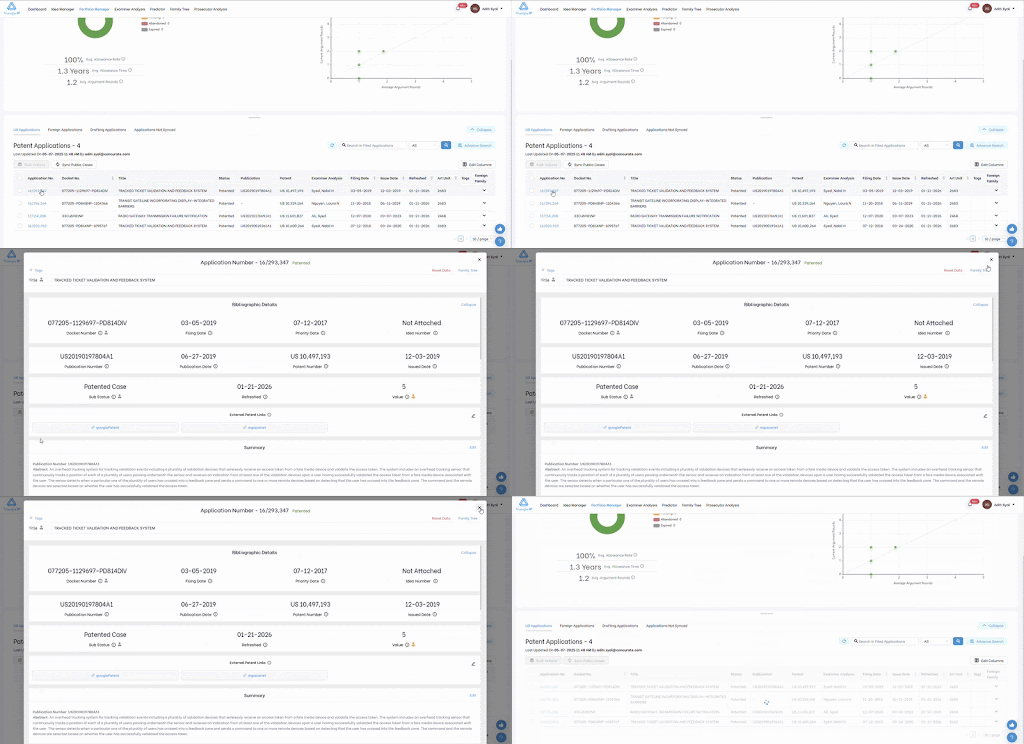
Here, you can review:
- USPTO status and sub-status
- Filing and bibliographic details
- Examiner and art unit information (if assigned)
- Cost details and predicted costs
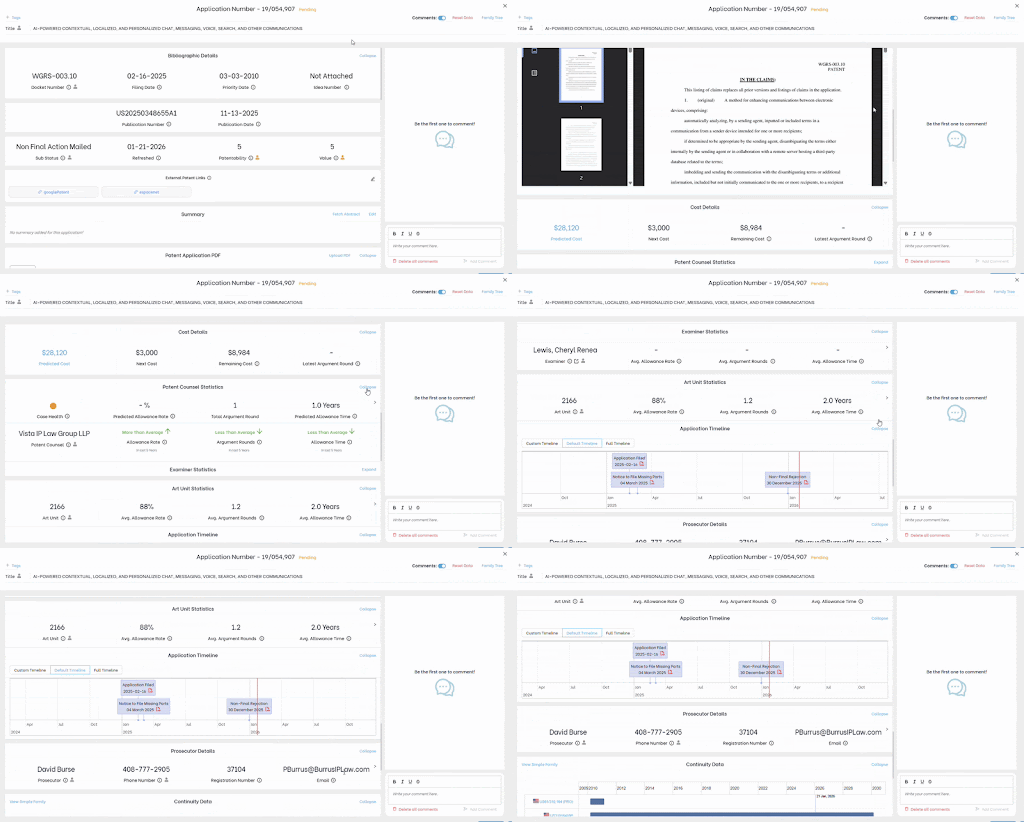
This view helps determine whether any follow-up or review is required.
Step 5: Within the application detail view, scroll to the Application Timeline section.
It shows prosecution events in chronological order, including filing, office actions, responses, notices of allowance, and issuance or abandonment.
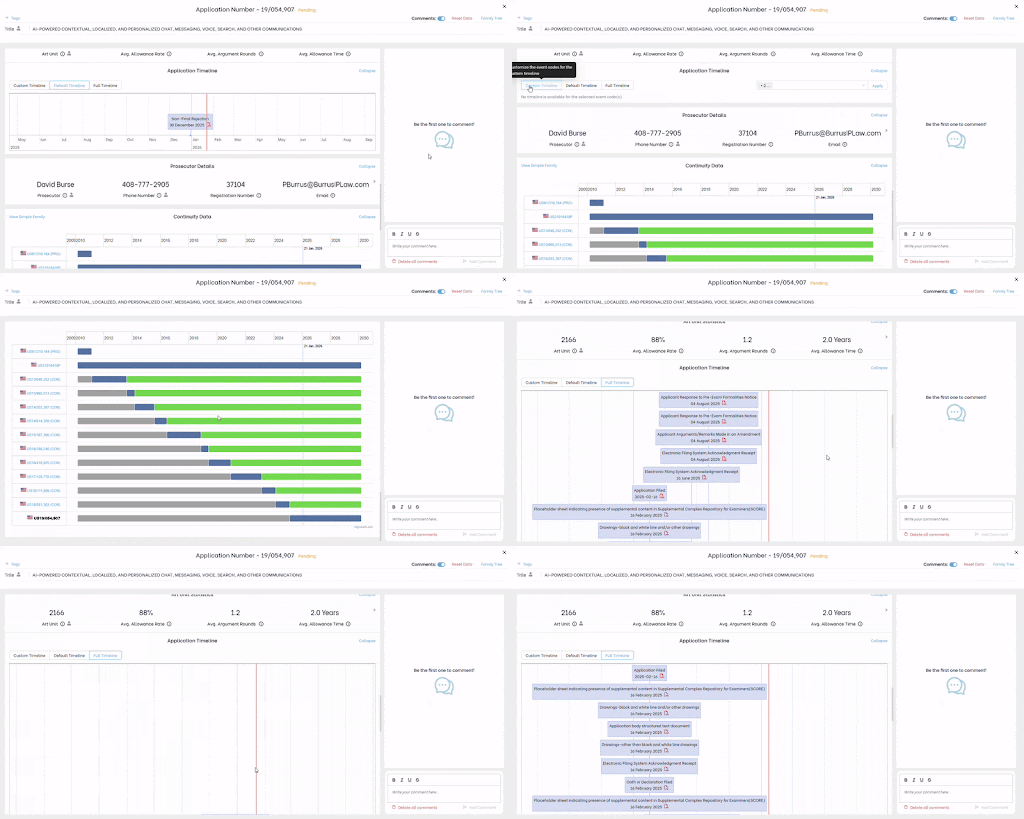
This provides a complete history of how the application has progressed at the USPTO.
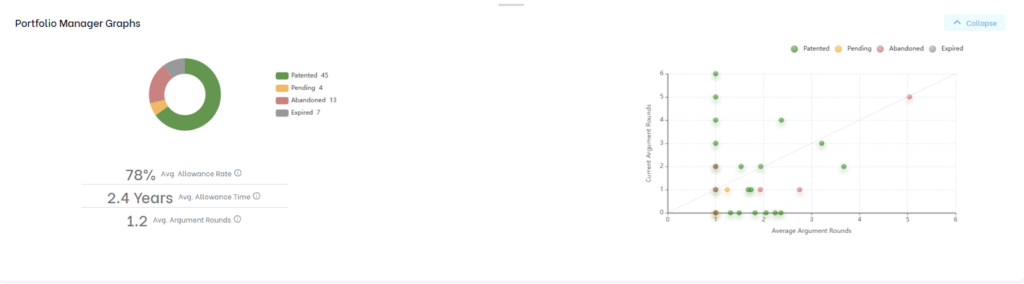
Step 6: After reviewing individual applications, step back to assess the portfolio as a whole. Portfolio Manager charts summarize how many applications are pending, patented, abandoned, or expired, providing a high-level view of overall portfolio progress.
How the TIP ToolTM Notify You For Patent Status Updates
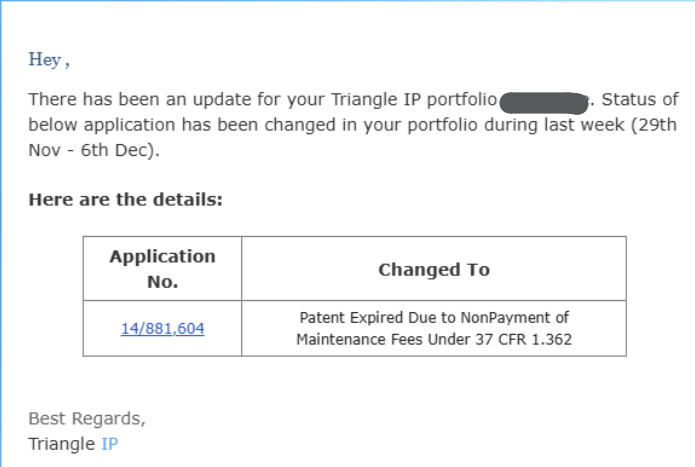
Patent status tracking continues throughout prosecution. The TIP Tool™ also sends weekly email updates highlighting status and prosecution changes across the portfolio, so stakeholders remain informed without constant manual checks.
Common Use Cases
1. Tracking Application Progress After Filing
After an application is filed, users rely on TIP Tool™ to understand where it stands in the prosecution process. By reviewing the current USPTO status and recent updates, teams can quickly see whether an application is moving forward, awaiting action, or has reached a final outcome.
2. Reviewing Portfolio Health at a Glance
Portfolio Manager provides a high-level view of how applications are distributed across key statuses such as pending, patented, abandoned, and expired. This allows managers and IP teams to quickly assess overall portfolio progress without reviewing individual applications one by one.
3. Following Up on USPTO Actions
When the USPTO issues an office action or other prosecution event, users can open the relevant application to review the update and understand its impact. This helps determine whether follow-up with patent counsel or internal teams is required.
4. Staying Updated Without Manual Tracking
Weekly email updates summarize changes in application status and prosecution activity across the portfolio. This ensures stakeholders remain informed without needing to log into the platform regularly.
5. Supporting Strategic and Budget Decisions
By reviewing application status alongside prosecution history and cost information, teams can make informed decisions about whether to continue, pause, or discontinue filings. This supports better alignment between patent strategy, budgets, and business priorities.
6. Maintaining a Shared View Across Teams
Patent status tracking in TIP Tool™ provides a single, centralized view that can be accessed by inventors, managers, and legal teams. This shared visibility reduces reliance on emails and spreadsheets and keeps everyone aligned on the current state of each application.