
Managing a global patent portfolio requires visibility into all your filings, not just US applications. That’s why the TIP Tool™ Portfolio Manager now allows you to add and track international patent applications from jurisdictions worldwide, including Mexico, Europe (EPO), Canada, Australia, Japan, China, and many others.
We offer two ways to help you understand the solution pick whichever works best for you:
Prefer to watch?
Start with our short walkthrough video that shows you exactly how it works, step by step.
Prefer to read?
This guide walks you through adding international applications, handling format validation, and managing applications that require manual intervention.
Adding International Applications via Auto-Sync
This is the fastest way to add international applications. The system automatically fetches application details from the European Patent Office (EPO) database.
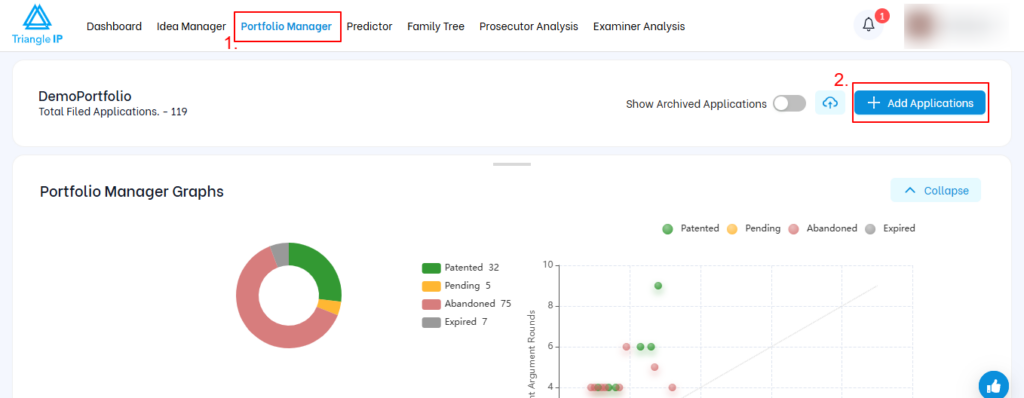
Step 1: Go to the Portfolio Manager from the navigation bar at the top. You will land on your portfolio dashboard. Now click on the Add Applications button in the top-right corner.
Step 2: In the Add Applications Modal, click on International Applications. Type or paste each international application number into the input field. Press Enter after each number to add it as a tag.
You can add multiple applications at once.
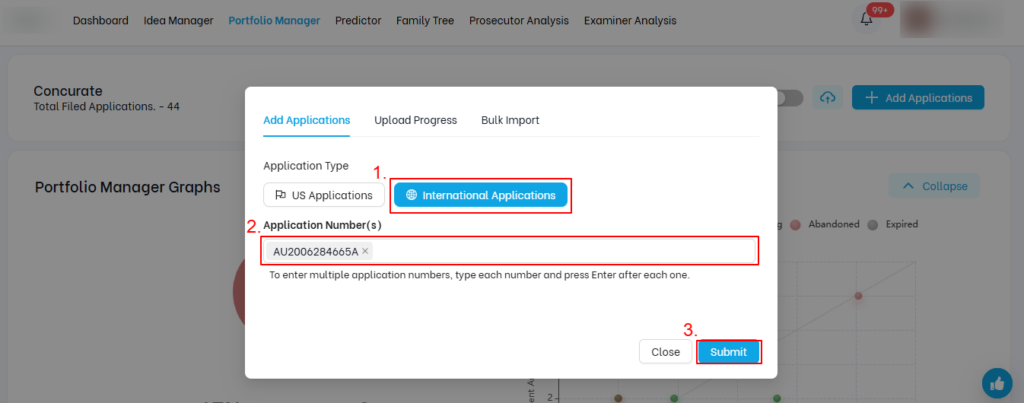
Once you click on Submit, the modal automatically switches to the Upload Progress tab, showing: “Upload in progress. You can close this window
After the processing completes, a green notification appears in the top-right corner
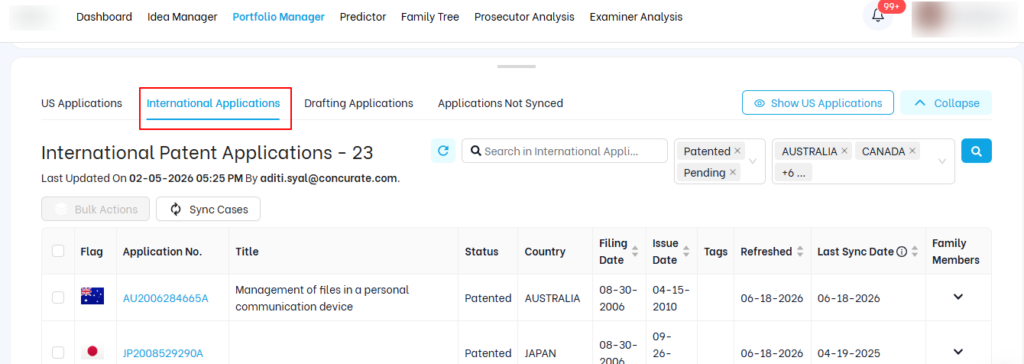
Step3: Scroll down and click on the International Applications tab to view the patent applications.
You’ll see a table listing all added applications with details:
- Country flag
- Application No. Clickable link to the application
- Title
- Status showing Pending, Patented, Abandoned
- Country
- Filing Date
- Tags
- Refreshed date
- Patent Family Members data
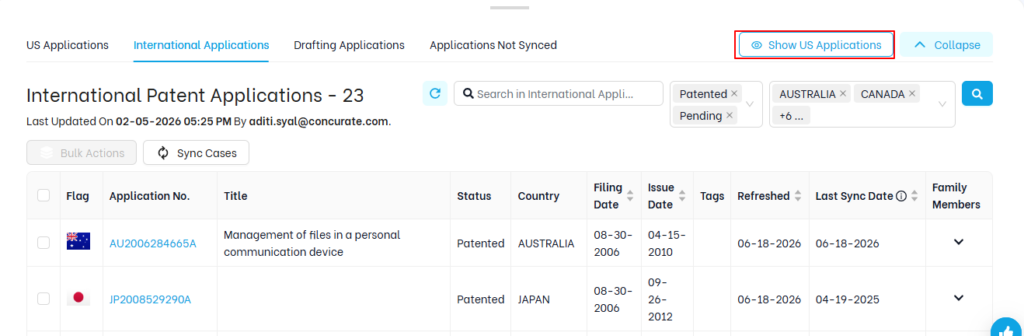
Click on the Show US Applications button to view the US patents in the International Applications tab.
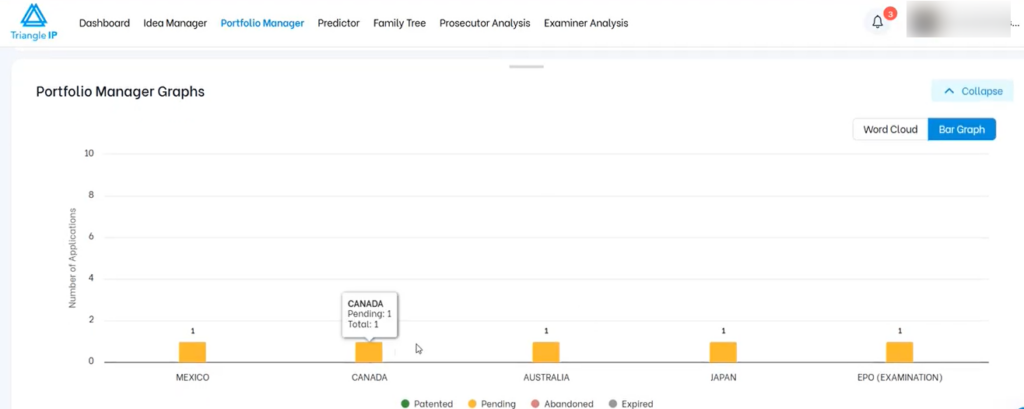
The Portfolio Manager Graphs section updates automatically, showing a bar chart of applications by country and colour-coded based on the patent application status.
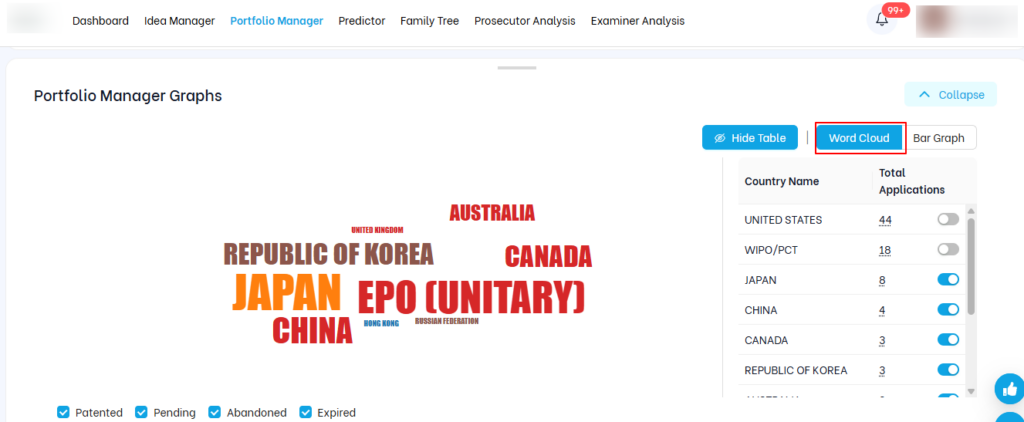
You can also explore the data in a word cloud view. Hover over any country name to see the total number of applications, along with the counts for patented, abandoned, pending, and expired applications.
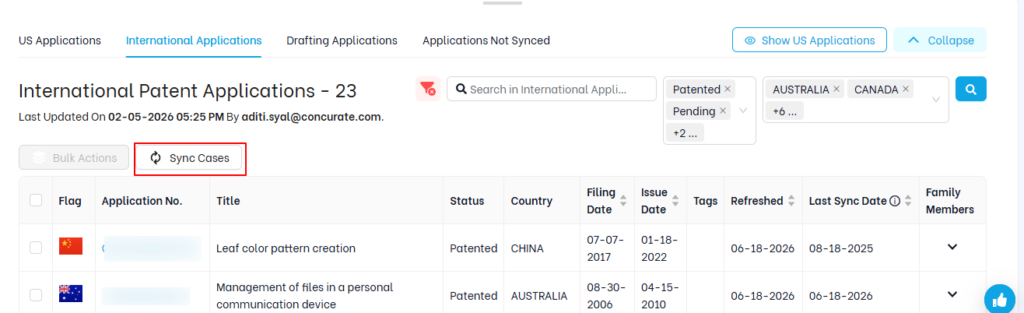
Step 4: Click the Sync Cases button to refresh data for all international applications. The system re-fetches the latest data from the EPO for all applications in the list.
| NOTE: The Applications Not Synced tab serves as a holding area for newly filed applications that you want to track in the Portfolio Manager before they become available in the EPO database. Applications are moved to this tab when: 1. The entered application number is incomplete or does not yet match a valid record in the EPO database. 2. You have partial filing details and want to add what you know now, then update and sync once the full record is available in the patent office. 3. When this happens, a notification appears stating that the application has been moved to the not synced section. Applications in this section display limited metadata including Idea Number, Serial Number, Created/Added date, and Last Modified date. They can be managed by: Retrying the sync once the application is published in the patent office; manually editing to update details as more information becomes available; or linking to an idea in the Idea Manager to keep your portfolio organised. |
Adding international Applications Manually
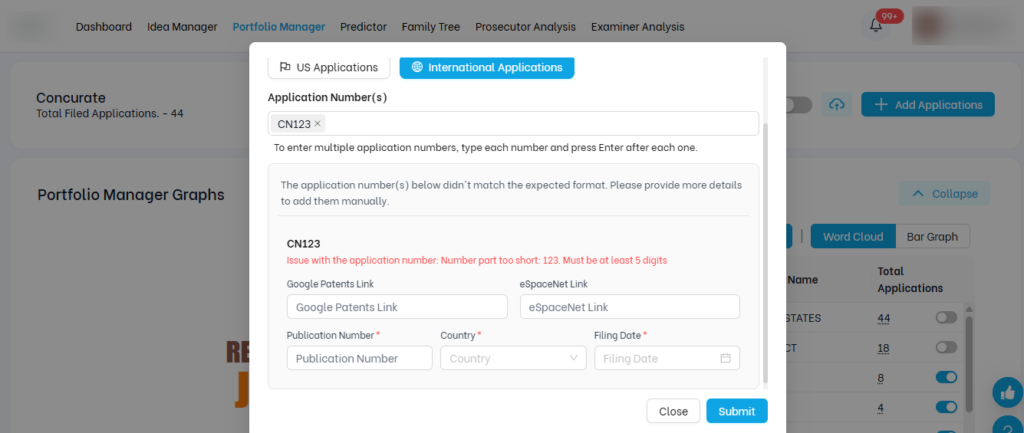
If an application number doesn’t match the expected format (e.g., too short, missing digits, or non-standard prefix), the system prompts you to add it manually.
In the form, it is mandatory to enter the Publication Number, Country, and the Filing Date. Optionally, you can also include the Google Patents Links and the eSpaceNetLink.
Manually added international applications appear in the International Applications tab alongside auto-synced applications. However, because they were not fetched from EPO, some fields may show limited data initially.