
We offer two ways to help you understand how to setup Custom Login Page in the TIP Tool™ — pick whichever suits you best:
Prefer to watch?
Start with our short walkthrough video that shows how to configure and use the custom login page.
Prefer to read?
Scroll down for the full written guide with step-by-step explanations.
What Is this Custom Login Page Setting in the TIP Tool™?
The Custom Login Page setting allows organizations to modify the login screen shown to users when accessing the TIP Tool™.
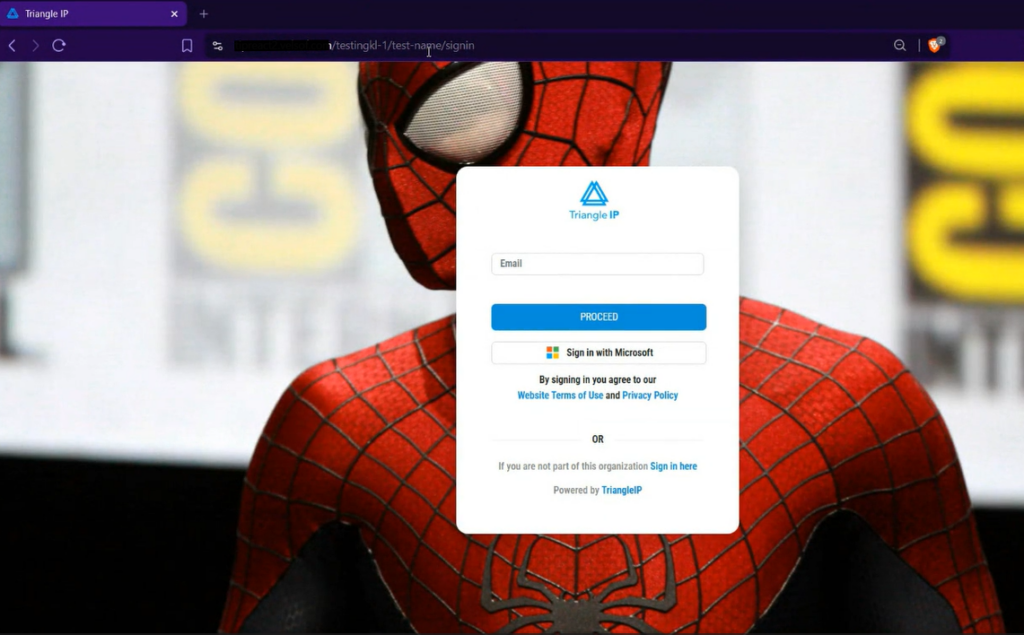
Organizations can configure elements such as the background image, which changes how the login page appears to users.
This setting is applied at the organization level, and the same login page is used across all portfolios within that organization.
Why This Feature Was Introduced
By default, all users see the standard TIP Tool™ login screen.
The Custom Login Page allows organizations to replace this default screen with a login page that reflects their own setup.
This is useful for organizations that want a distinct login screen for their users, especially when multiple users access the platform under the same organization.
How to Set Up a Custom Login Page for Your Organization (Step-by-Step)
Follow the steps below to enable and configure the custom login page.
Step 1: Sign in to the TIP Tool™ and open the Control Panel.
Only the organization owner can configure the custom login page.
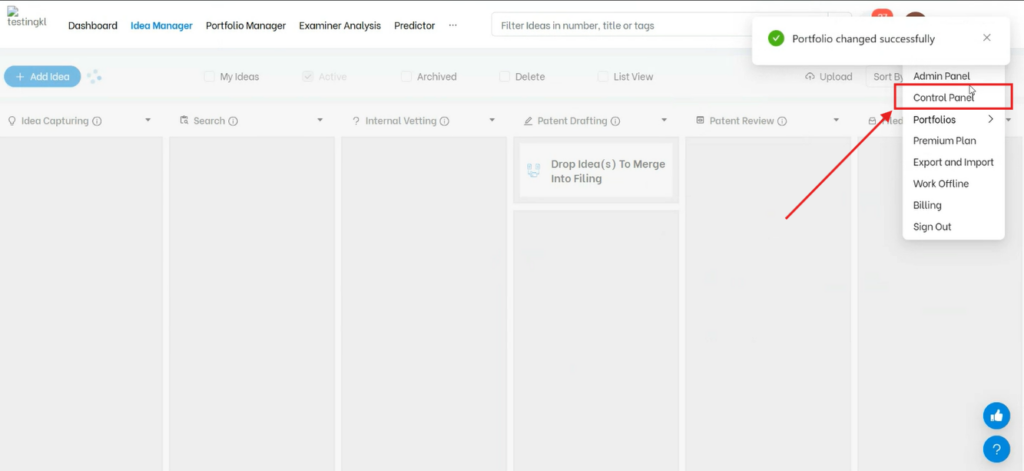
Step 2: Ensure that you are viewing the organization-level settings.
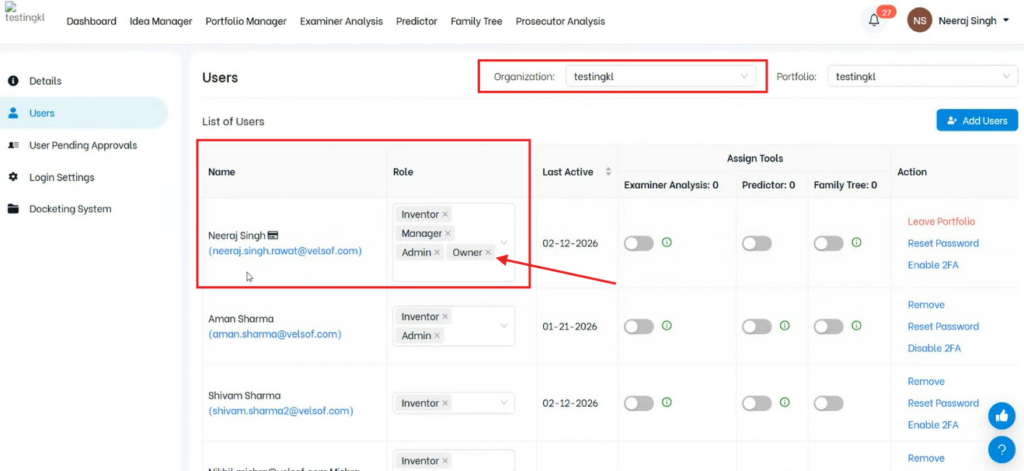
As shown in the system, the custom login page option is available only at the organization level, not at the portfolio level.
Step 3: From the left-hand menu, click on Details.
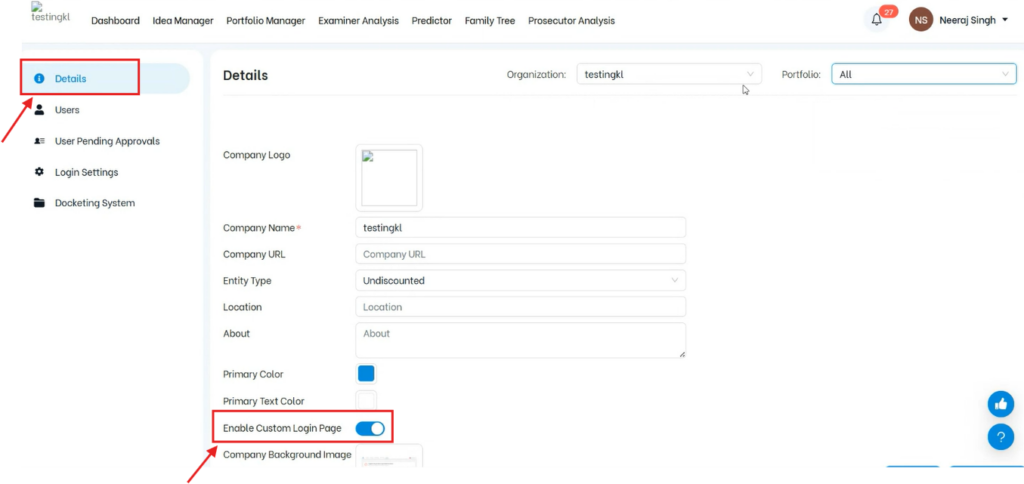
In this section, locate the Custom Login Page option.
- Toggle the setting to enable it
- This will activate the custom login page for your organization
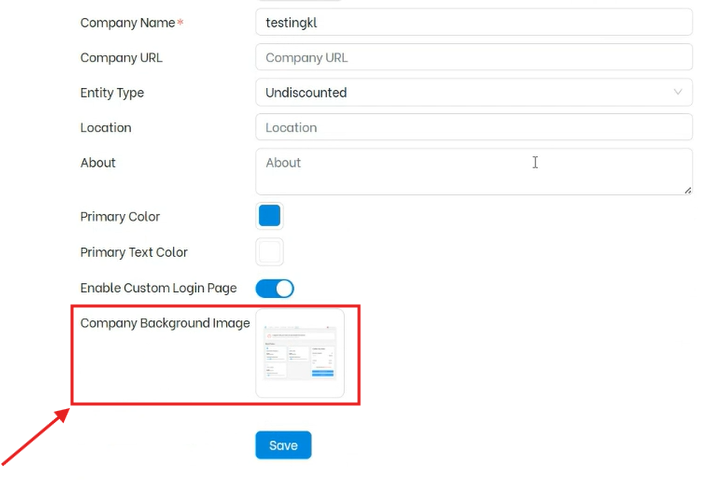
Step 4: You need to configure the background image for your login page. For that upload the background image.
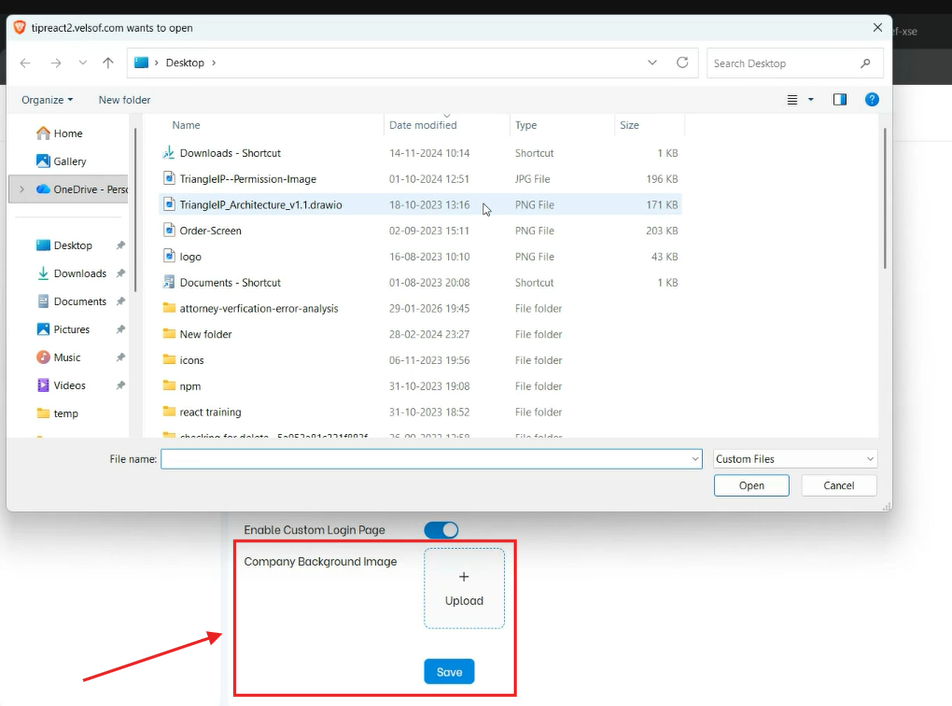
This image will be displayed to users when they access the login screen.
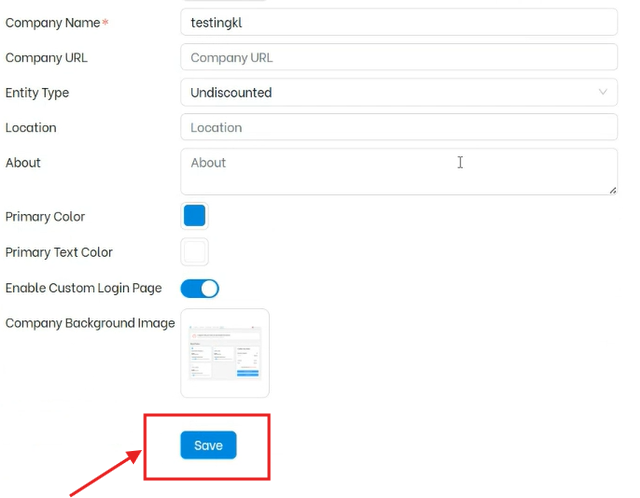
Step 5: Click Save to apply the changes.
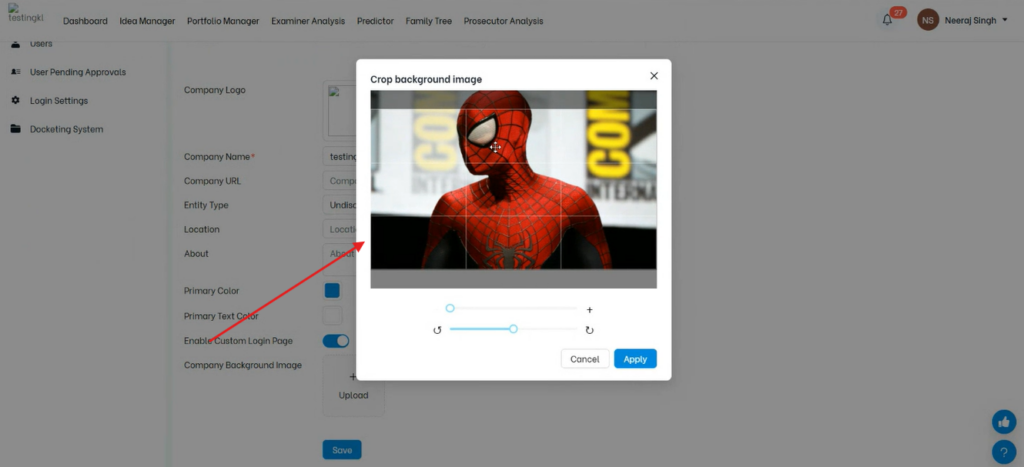
Step 6: Crop and adjust the background image as per need.
Once saved, the custom login page will be active for your organization.
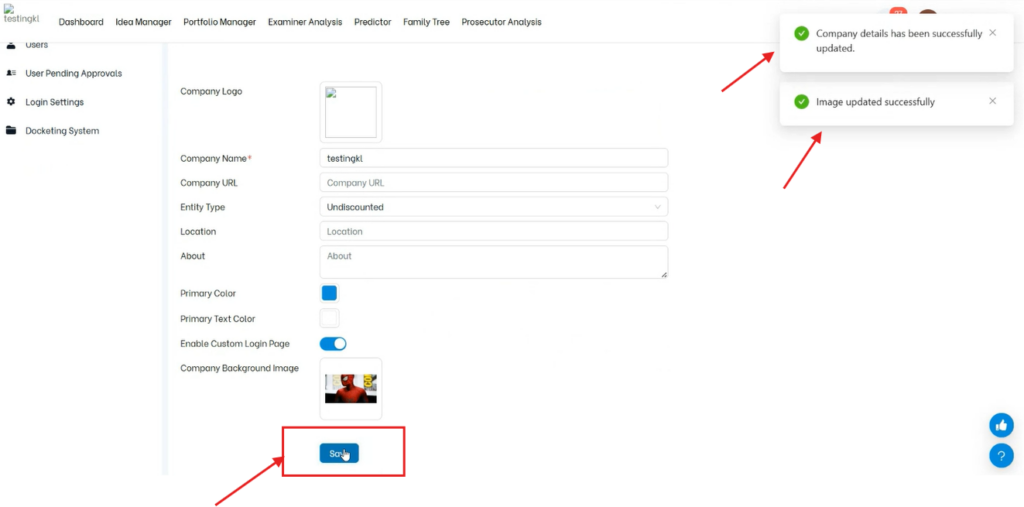
Here’s how the background image will look on your login:
Important Notes
- The Custom Login Page is available only at the organization level
- Portfolio-level settings inherit the organization configuration
- Only the organization owner can enable or modify this setting
- This feature customizes the look and feel of the login experience